OpenCL Issues
This page explains common OpenCL error codes (CL_INVALID_BINARY, CL_PLATFORM_NOT_FOUND_KHR, CL_OUT_OF_RESOURCES, and others) and how to fix them.
Error |
Explanation |
Instructions |
CL_INVALID_BINARY |
This indicates a problem with your OpenCL device (CPU/GPU) or driver. |
|
CL_INVALID_QUEUE_PROPERTIES |
||
CL_PLATFORM_NOT_FOUND_KHR |
Your system is missing OpenCL drivers. |
|
CL_OUT_OF_RESOURCES |
This indicates a problem with your OpenCL device (CPU/GPU) or driver. |
|
CL_MEM_OBJECT_ALLOCATION_FAILURE |
||
CL_OUT_OF_HOST_MEMORY |
Your computer does not have enough memory to execute the current task. |
|
CL_INVALID_BINARY
To check if your OpenCL driver is above the required version, you can use clinfo.
Windows
Download the clinfo Windows binary file.
Launch the Command Prompt by pressing Win + R keys on the keyboard, then type
cmdand press Enter.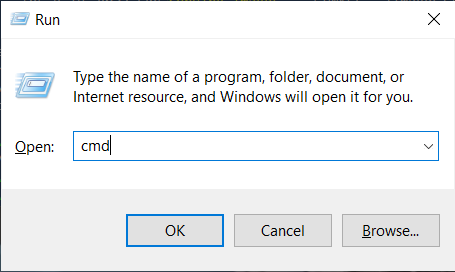
Navigate to the directory that contains the downloaded file (clinfo.exe) and execute the following command:
clinfo.exe -l
This will print all available information about all OpenCL platforms on the system and the devices they expose.
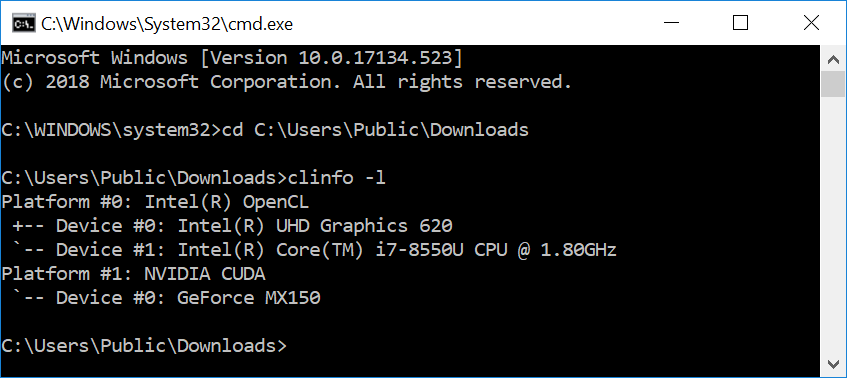
If your GPU is not listed you may need to install the OpenCL drivers and/or graphics drivers.
To check the OpenCL driver version, use
clinfoand search for the OpenCL platform version:clinfo.exe | findstr "Platform\ Version"
If the version is below OpenCL 1.2, you need to update your graphics drivers.
Ubuntu
Open a terminal window by pressing Ctrl + Alt + T keys on the keyboard and install
clinfo.sudo apt install -y clinfo
Run
clinfo -lto list all OpenCL platforms.sudo /usr/bin/clinfo -l
This will print all available information about all OpenCL platforms on the system and the devices they expose.
If your GPU is not listed you may need to install the OpenCL drivers and/or graphics drivers.
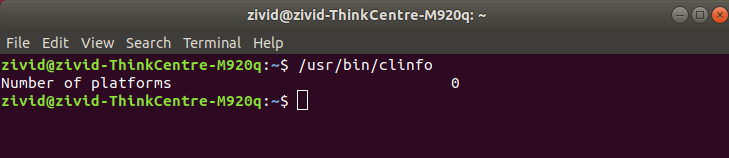
To check the OpenCL driver version, use
clinfoand search for the OpenCL platform version:sudo /usr/bin/clinfo | grep "Platform Version"
If the version is below OpenCL 1.2, you need to update your OpenCL drivers and/or graphics drivers.
CL_PLATFORM_NOT_FOUND_KHR
On Ubuntu, you may need to add your user as part of the render and/or video groups for OpenCL to work.
Ubuntu 26.04
OpenCL will not work if your user is not part of the render group and the video group.
Open a terminal window by pressing Ctrl + Alt + T keys on the keyboard, then add your user to the correct group:
sudo gpasswd -a $USER render
sudo gpasswd -a $USER video
Ubuntu 24.04
OpenCL will not work if your user is not part of the render group and the video group.
Open a terminal window by pressing Ctrl + Alt + T keys on the keyboard, then add your user to the correct group:
sudo gpasswd -a $USER render
sudo gpasswd -a $USER video
Ubuntu 22.04
OpenCL will not work if your user is not part of the render group and the video group.
Open a terminal window by pressing Ctrl + Alt + T keys on the keyboard, then add your user to the correct group:
sudo gpasswd -a $USER render
sudo gpasswd -a $USER video
Ubuntu 20.04
OpenCL will not work if your user is not part of the render group.
Open a terminal window by pressing Ctrl + Alt + T keys on the keyboard, then add your user to the correct group:
sudo gpasswd -a $USER render
Ubuntu 18.04
注釈
Support for Ubuntu 18.04 was removed in SDK 2.10. To view its setup instructions, switch the Knowledge Base to a previous version in the top left corner; they are also preserved in Knowledge Base versions for SDK 2.9 and earlier.
Restart your PC:
sudo reboot