HALCON and GenICam Installation Issues
HALCON과 함께 Zivid를 설치하고 사용하려고 할 때 문제가 발생하면 다음 단계를 따르십시오.
PC에서 다음으로 이동합니다. Control Panel → Uninstall a program, TeliCamSDK (x64) 을 제거합니다. 이 단계에서 문제가 발생하면 IT 부서에 문의하여 이전 Windows registry 키를 삭제하십시오.
PC를 재부팅합니다.
Zivid 소프트웨어: Software Installation 를 설치합니다. 설치 중 GenICam GenTL Producer 와 Camera drivers 체크 박스를 활성화해야 합니다.

PC를 재부팅합니다.
환경 변수가 올바르게 설정되었는지 확인하십시오. PC에서 다음으로 이동합니다. Control Panel → System and Security → System → Advanced System Settings → Environmental Variables
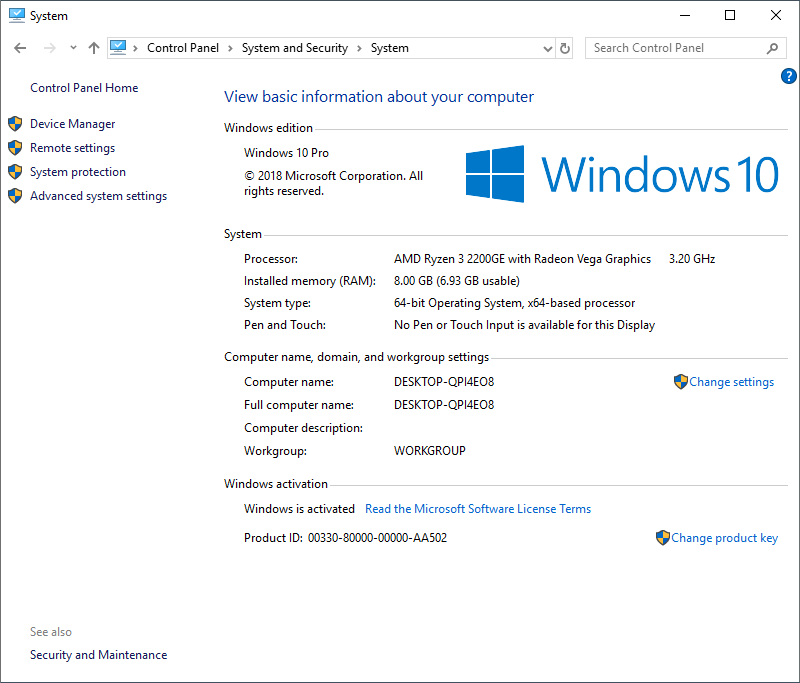
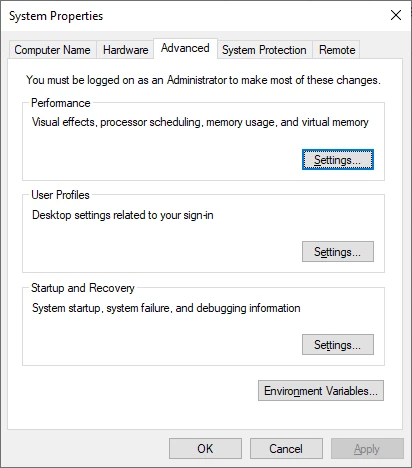
시스템 변수에서:
select
Pathvariableclick Edit… (이 단계에서 New 를 클릭하지 마십시오. Path 시스템 변수의 기존 값을 덮어씁니다!)
아래 값이 없으면 New 를 클릭하여 추가합니다.
Variable name:
PathVariable value
C:\Program Files\Zivid\bin참고
Zivid 설치 경로가 올바른지 확인하십시오.
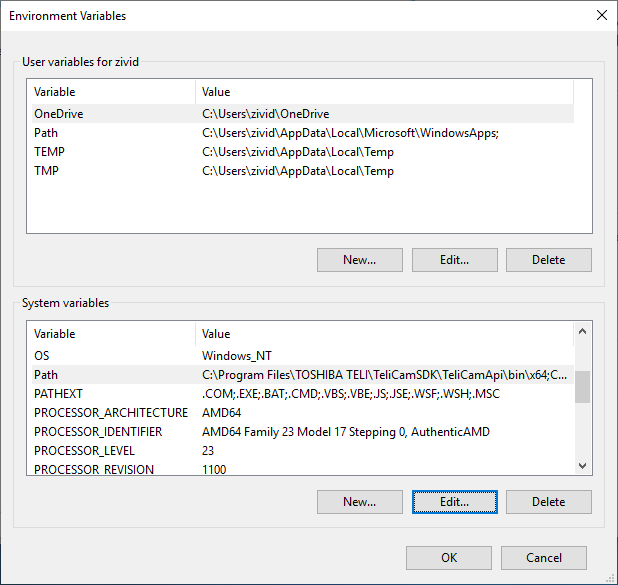
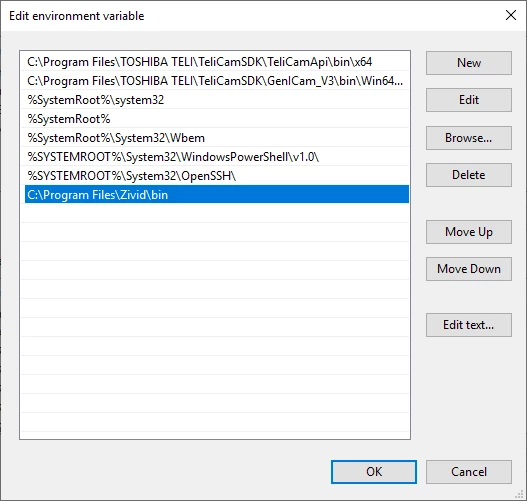
OK 를 클릭하여 환경 변수 창으로 돌아갑니다. 그런 다음 아래 System variables 에서 GENICAM_GENTL64_PATH 변수를 찾고, Edit… 을 눌러 아래 값이 포함되어 있는지 확인하십시오. 그렇지 않은 경우 New 를 클릭하여 추가하십시오.
Variable name:
GENICAM_GENTL64_PATHVariable value
C:\Program Files\Zivid\binHALCON을 엽니다.