Zivid CLI Tool for Hand-Eye Calibration
이 튜토리얼에서는 명령줄 인터페이스(CLI) 도구를 사용하여 핸드-아이 캘리브레이션을 보정하는 방법을 보여줍니다. 아래에 스크린샷과 함께 단계별 지침이 제공됩니다.
참고
로봇 자세를 위한 *.yaml file 파일 형식을 사용하는 ZividExperimentalHandEyeCalibration.exe CLI 도구는 실험적 입니다. 대신 핸드-아이 GUI 합니다.
Requirements
Hand-Eye Calibration 에 대한 기본 지식
핸드-아이 캘리브레이션 데이터 세트 - 아래 첫 번째 단계에서 다룹니다.
Instructions
Acquire the dataset
Hand-Eye Calibration 에 대한 전체 튜토리얼을 아직 읽지 않으셨다면 읽어보시기를 권장합니다. 데이터셋을 얻기 위한 최소한의 정보는 How to get Good Dataset for Hand-Eye Calibration 참조하십시오. 또한 Cautions and Recommendations for Hand-Eye Calibration 읽어보시는 것도 매우 도움이 될 수 있습니다.
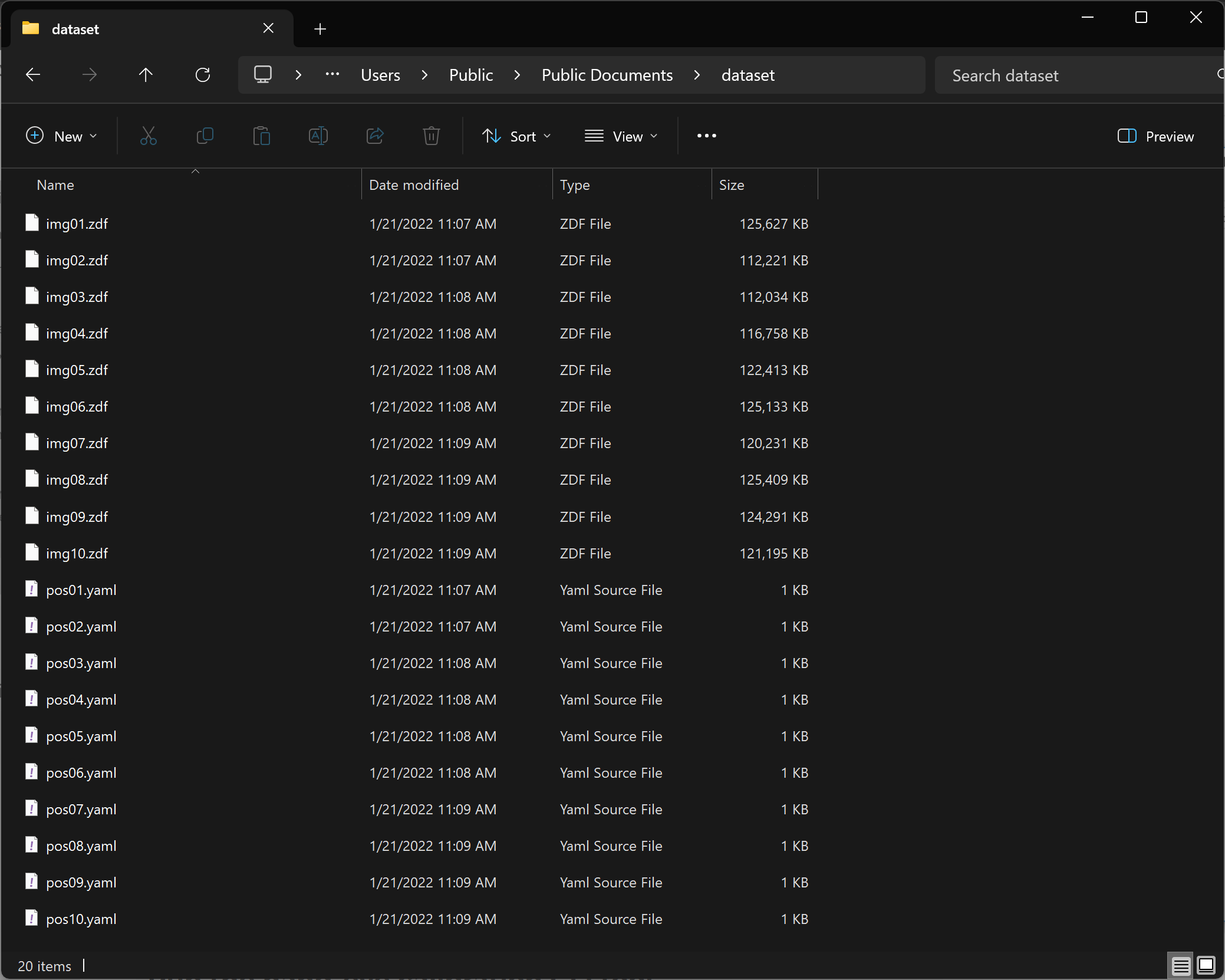
이 데이터세트는 .zdf 파일 형식의 Zivid calibration object 포인트 클라우드 10~20쌍과 .yaml 파일 형식의 해당 로봇 포즈를 가정합니다. 명명 규칙은 다음과 같습니다.
Point clouds: img01.zdf, img02.zdf, img03.zdf 등
Robot poses: pos01.yaml, pos02.yaml, pos03.yaml 등
조심
로봇 포즈의 변환 부분은 mm 단위여야 합니다.
CLI 도구는 Zivid 체커보드 또는 ArUco 마커와 함께 작동합니다. 하지만 SDK와 달리 CLI 도구는 단일 ArUco 마커 사전(DICT_4X4_50)과만 함께 작동합니다.
Here’s an example of a robot pose available for download - pos01.yaml.
It is a 4x4 transformation matrix where the rightmost column (first three rows) holds the translation, here in millimeters (for example 302.8, 647.9, 458.3).
If your robot reports the translation in meters, multiply it by 1000 before saving the pose.
To learn how to write/read files in .yaml format, check out the OpenCV YAML file storage class.
The dataset folder should look similar to this:
조심
로봇 포즈 파일은 .yaml 파일 형식인 반면, 카메라 설정 및 구성 파일은 .yml 파일 형식입니다.
Run the hand-eye calibration CLI tool
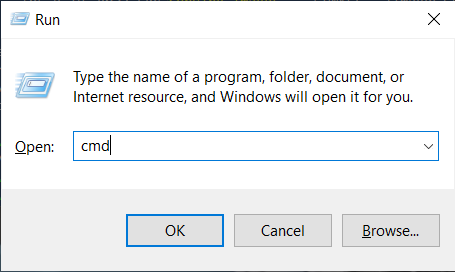
키보드에서 Win + R 키를 눌러 명령 프롬프트를 시작한 다음 cmd 을 입력하고 Enter 를 누릅니다.
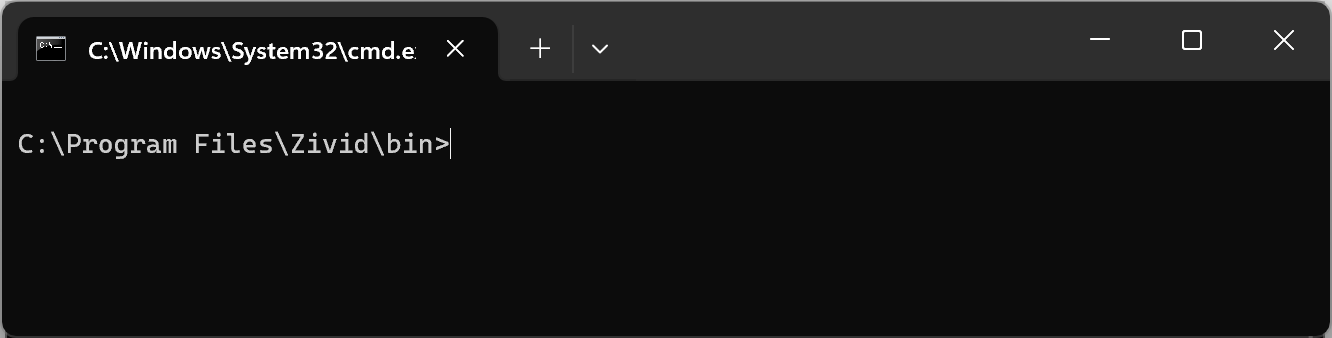
Zivid 소프트웨어를 설치한 폴더로 이동합니다.
cd C:\Program Files\Zivid\bin
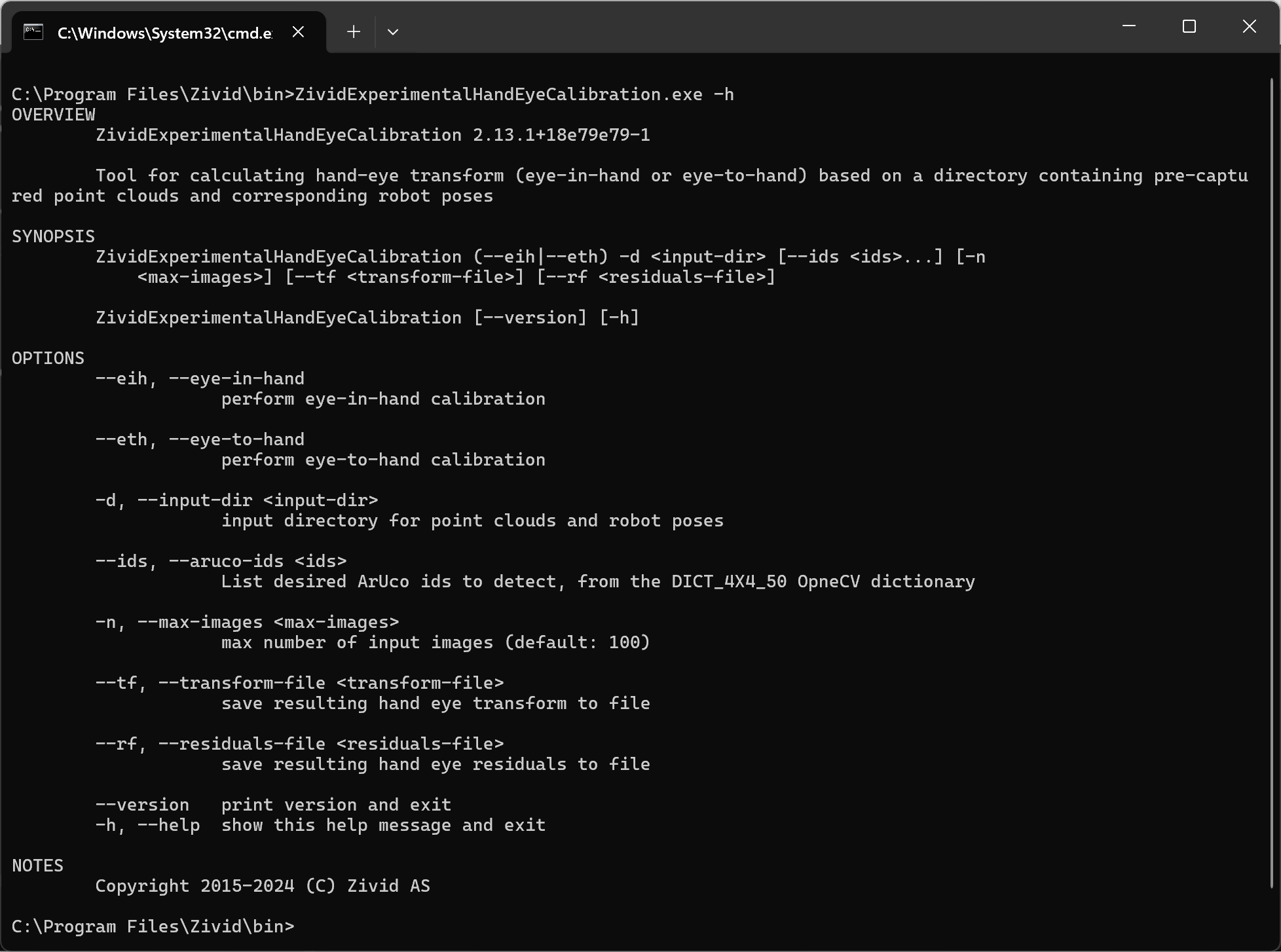
ZividExperimentalHandEyeCalibration.exe 의 입력 및 출력입니다. CLI 도구에 다음 명령을 입력하여 표시할 수 있습니다.
ZividExperimentalHandEyeCalibration.exe -h
ZividExperimentalHandEyeCalibration.exe CLI 도구를 실행하려면 다음을 지정해야 합니다.
Zivid checkerboard
캘리브레이션 유형(eye-in-hand or eye-to-hand)
데이터 세트(.zdf 파일 및 .yaml 로봇 포즈)가 포함된 디렉토리 경로
결과 핸드-아이 캘리브레이션 및 잔차를 저장할 위치를 지정하는 것도 편리합니다. 아래 예를 참조하십시오.
SET dataset=C:\Users\Public\Documents\Directory_where_dataset_is_located
ZividExperimentalHandEyeCalibration.exe --eth -d "%dataset%" --tf "%dataset%\transform.yaml" --rf "%dataset%\residuals.yaml"
ArUco marker
캘리브레이션 유형(eye-in-hand or eye-to-hand)
데이터 세트(.zdf 파일 및 .yaml 로봇 포즈)가 포함된 디렉토리 경로
사용된 ArUco 마커의 ID
결과 핸드-아이 캘리브레이션 및 잔차를 저장할 위치를 지정하는 것도 편리합니다. 아래 예를 참조하십시오.
SET dataset=C:\Users\Public\Documents\Directory_where_dataset_is_located
ZividExperimentalHandEyeCalibration.exe --eth -d "%dataset%" --tf "%dataset%\transform.yaml" --rf "%dataset%\residuals.yaml" --ids 1, 2, 3
실행 중, 알고리즘은 보정 객체를 감지할 수 있으면 (“OK”) 를, 감지할 수 없으면 (“FAILED”) 를 출력합니다. 감지 단계 후, 결과적인 핸드-아이 변환(4x4 동차 변환 행렬)을 출력합니다. 마지막으로, 모든 포즈에 대해 Hand-Eye Calibration Residuals 출력합니다. 아래 출력 예시를 참조하세요.
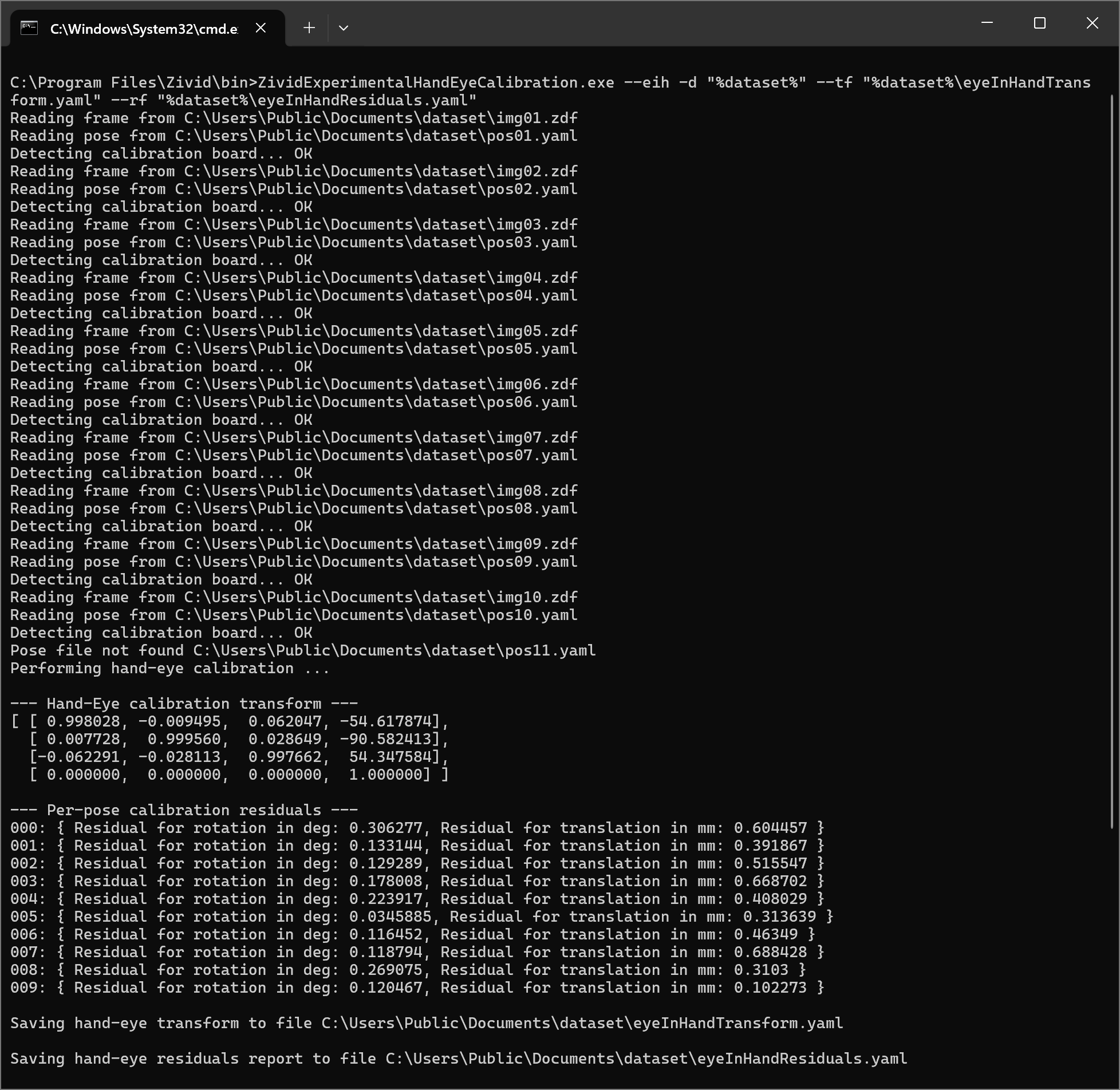
핸드-아이 캘리브레이션을 완료한 후 다음 단계는 생성된 변환 행렬이 정확하고 요구 정확도를 충족하는지 확인하는 것입니다. How to Verify Hand-Eye Calibration 문서에서 여러 가지 방법을 설명합니다.
생성된 동차 변환 행렬(eyeInHandTransform.yaml)을 사용하여 피킹 포인트 좌표 또는 전체 포인트 클라우드를 카메라 프레임에서 로봇 베이스 프레임으로 변환할 수 있습니다. 자세한 내용은 How To Use the Result of Hand-Eye Calibration 를 참조하세요.