Sessions
Zivid Studio 세션은 핸드-아이 캘리브레이션, Warmup, Infield Correction 도구가 공유하는 디스크 상의 작업 공간이며, 세션 관리자가 이를 생성하고 엽니다.
각 도구는 현재 세션을 읽고 쓰므로, 하나의 카메라 및 로봇 설정에 대한 캡처, 캘리브레이션 결과, 검증 데이터가 함께 유지됩니다. Studio는 세션을 자동으로 저장하므로 Save 또는 Save As 동작이 없습니다.
사전 요구 사항
Zivid 소프트웨어 를 설치하세요.
What a session contains
A session is a folder on disk, not a single file.
Studio creates each session in the session root folder and names it with a timestamp, for example 20261110_143005.
By default, the root folder is %LOCALAPPDATA%\Zivid\CalibrationSessions on Windows and ~/.local/share/Zivid/CalibrationSessions on Linux.
To use another folder, click Browse… next to Root folder in the session manager.
Studio remembers the root folder you last used.
A session.yml file inside the folder marks it as a session and holds its settings: the mounting (eye-in-hand or eye-to-hand), whether low-DOF is used, the calibration object, the marker configuration, and the default robot-pose rotation format.
Studio can also open a session saved by the Hand-Eye GUI with RoboDK, which has a session_info.json file instead, and takes the mounting, the calibration object, and the markers from it.
캡처된 데이터는 세션의 하위 폴더에 저장됩니다:
Warmup: 워밍업 캡처.
Infield: Infield Correction 데이터.
Calibration: 핸드-아이 포즈 쌍과 그 결과 변환.
Calibration/Verification-Projection, Calibration/Verification-Stitching, 그리고 Calibration/Verification-Touch: 검증 데이터셋.
Disk usage
세션은 디스크 공간을 차지합니다. Studio가 캡처된 포인트 클라우드를 묻지 않고 세션에 저장하기 때문입니다. 실험적 기능이 활성화되어 있으면 Studio는 모든 핸드-아이 포즈 쌍, 모든 Infield Correction 캡처, 모든 스티칭 검증 캡처에 대해 전체 포인트 클라우드(ZDF 파일)를 저장합니다. Warmup은 온도 및 진실도 측정값이 담긴 작은 CSV 파일만 저장합니다.
Studio는 데이터가 있는 세션을 삭제하지 않습니다(시작 시 빈 세션만 제거합니다). 디스크 공간을 확보하려면 세션 관리자에 표시된 루트 폴더에서 더 이상 필요하지 않은 세션 폴더를 삭제하세요.
Opening the session manager
Go to Tools → Session → Sessions…, or click Sessions… in the Configuration panel of the Hand-Eye Calibration window. The Session submenu also shows the current session name, or No session open.
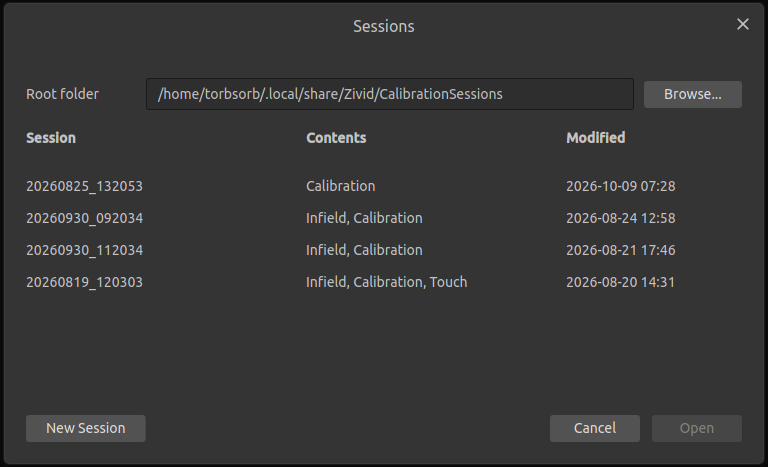
이 대화 상자에는 루트 폴더에서 찾은 세션이 최신순으로 나열됩니다. 각 행에는 세션 이름, 이미 데이터가 있는 도구, 마지막으로 수정된 시간이 표시됩니다.
Creating and opening sessions
New Session 을 클릭하면 현재 루트 폴더에 빈 세션을 시작합니다.
세션을 선택하고 Open 을 클릭하거나 더블클릭하면 해당 세션으로 전환됩니다.
Studio가 세션을 검색할 폴더를 선택하려면 Root folder 옆의 Browse… 를 클릭하세요.
Studio는 시작할 때 마지막 세션을 다시 엽니다. 해당 세션이 비어 있으면 Studio는 대신 새 세션을 시작합니다.
Reviewing a saved session
이미 핸드-아이 포즈 쌍이 있는 세션을 열면 검토를 위해 해당 데이터가 로드됩니다. 이 경우 새 포즈 쌍을 캡처하거나 기존 포즈 쌍을 삭제할 수 없습니다. 그래도 구성을 변경하고, 재캘리브레이션하고, 검증 캡처를 실행할 수는 있습니다. Studio는 이러한 변경 사항을 세션에 저장하며, 처음으로 변경할 때 원본 파일을 백업합니다. 수집 당시의 세션 상태로 되돌리려면 Configuration 패널에서 Restore original (as collected) 를 클릭하세요. 새 포즈 쌍을 캡처하려면 Start new session 을 클릭하세요.
Using several tools in one session
Hand-Eye Calibration cannot be open at the same time as Infield Correction or Warmup, because they use the same camera and robot. If you open one while the other is open, Studio asks you to close the other first.
Infield Correction changes the camera’s correction, so a hand-eye calibration made before it no longer matches the camera. If the session already holds hand-eye pose pairs, opening Infield Correction offers to start a new session, so each hand-eye calibration stays with the correction it was made with. To use one session for all three tools, run Warmup and Infield Correction before you capture hand-eye pose pairs.
Next steps
Warmup 로 카메라를 예열하고 캡처를 세션에 저장합니다.
Infield Correction 로 치수 진실도를 검증하고 보정하며, 데이터를 세션에 저장합니다.
Hand-Eye Calibration 로 세션 내에서 포즈 쌍을 캡처하고 캘리브레이션합니다.
Continue reading about Zivid Studio in Depth Profile.