No cameras found in Zivid Studio
Problem
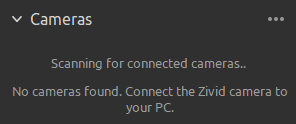
Zivid Studio is not able to discover your camera, and outputs the following message:
Solution
Ensure that the camera is powered on and properly connected by looking at the Ethernet Link LED at the back of the camera. Also check the link LED at the PC (or switch) end of the cable. If either link LED is off, the link layer is down. Replace the cable or try a different port before continuing.
Power-cycle the camera and look at the projection. For about 60 seconds after boot, the camera projects its IP address and link status as a splash screen. This lets you confirm the camera’s own view of its state without any SDK connection.
Confirm your Network Configuration.
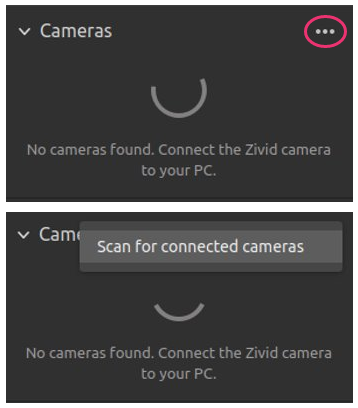
Scan for the connected cameras by pressing … followed by Scan for connected cameras, or restart Zivid Studio.
If you are still not able to discover the camera, please try one of the following:
Check that you do not have a
Cameras.ymlconfiguration file on your system. This file will restrict which cameras you can connect to based on IP addresses or hostnames. You can read more about this in Restrict Discoverable Cameras with Cameras.yml.If you are configuring a camera with firmware from SDK 2.9 and below, the IP of the PC must first be in the local subnet range of the camera. Go to Static IP Network Configuration to do this.
Do a factory reset of the camera to its default IP address
172.28.60.5. Zivid SDK will specifically search for and discover any camera with this IP address. Go to Factory Reset Button to do this. Please refer to Reset Button Fails to Reset Network Configuration if you encounter issues with the factory reset button.If you need to monitor link-speed changes programmatically (for example to detect intermittent cable issues), see Detect Ethernet Link Changes.
If the camera was previously working and now disconnects or restarts repeatedly during operation rather than failing to be found at all, see Camera disconnects or restarts repeatedly during operation.
Please contact customersuccess@zivid.com if you are still not able to discover the camera.