在 Ubuntu 上安装 OpenCL 驱动程序
To install the OpenCL driver on Ubuntu, select your GPU vendor below and run the listed commands for your Ubuntu version.
Intel
按键盘上的 Ctrl + Alt + T 键打开终端窗口,然后安装 OpenCL 驱动程序。
Ubuntu 26.04
sudo apt update
sudo apt install intel-opencl-icd
Ubuntu 24.04
sudo apt update
sudo apt install intel-opencl-icd
Ubuntu 22.04
sudo apt update
sudo apt install intel-opencl-icd
Ubuntu 20.04
sudo apt update
sudo apt install intel-opencl-icd
Ubuntu 18.04
备注
自 SDK 2.10 起,移除了对 Ubuntu 18.04 的支持。如需查看早期 SDK 版本的 Ubuntu 18.04 说明,请更改左上角的知识库版本。
打开 Zivid Studio 并验证不会出现 OpenCL 错误。
备注
如果您碰到 OpenCL 错误,请 将您的用户添加到视频组。
NVIDIA
将 NVIDIA GPU 驱动程序 PPA 添加到您的系统:
按下键盘上的 Ctrl + Alt + T 键打开终端窗口。
添加图形驱动程序 PPA:
sudo add-apt-repository ppa:graphics-drivers/ppa
添加 PPA 后会打印当前长期分支版本的驱动程序包名称,例如
nvidia-xxx。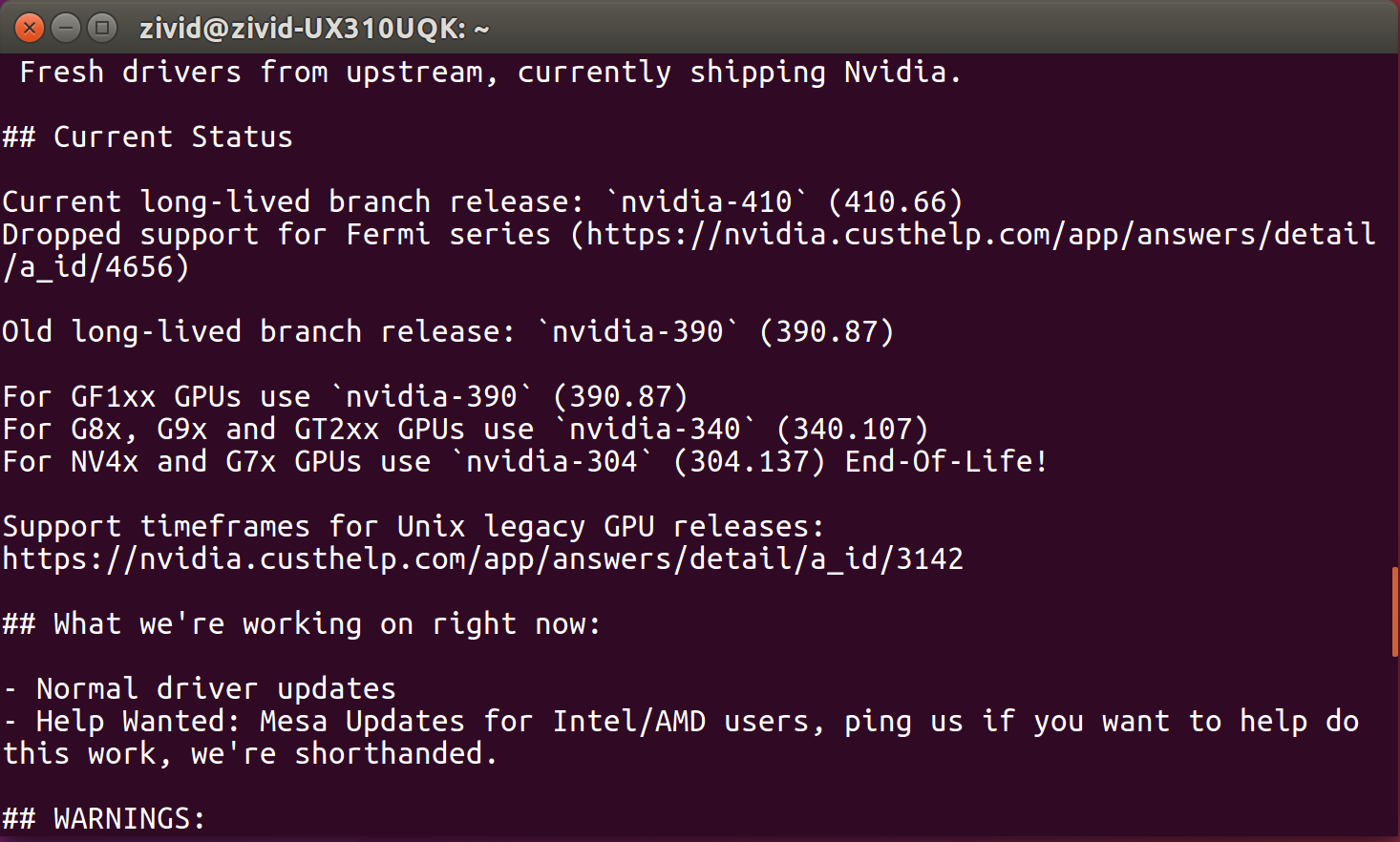
为您的系统安装当前最新的驱动程序:
Ubuntu 26.04
sudo apt update
sudo apt install nvidia-driver-xxx
Ubuntu 24.04
sudo apt update
sudo apt install nvidia-driver-xxx
Ubuntu 22.04
sudo apt update
sudo apt install nvidia-driver-xxx
Ubuntu 20.04
sudo apt update
sudo apt install nvidia-driver-xxx
Ubuntu 18.04
备注
自 SDK 2.10 起,移除了对 Ubuntu 18.04 的支持。如需查看早期 SDK 版本的 Ubuntu 18.04 说明,请更改左上角的知识库版本。
安装驱动程序后,重新启动系统:
sudo reboot打开 Zivid Studio 并验证不会出现 OpenCL 错误。
备注
如果您碰到 OpenCL 错误,请 将您的用户添加到视频组。
AMD
警告
由于使用率低以及驱动程序中的 OpenCL 稳定性问题,我们移除了对使用 AMD 计算设备/GPU 的支持。您可以通过在 Config.yml 文件中启用一个选项,选择使用不受支持的计算设备来运行 SDK。但是,这样的设置可能会产生意外的结果和错误,并且未经 Zivid 测试。
警告
Radeon 在某些 GPU 上不再支持 SPIR。请验证您的 GPU 驱动程序是支持 SPIR 的,以确保与 Zivid 软件兼容。
下载并解压适用于 Linux 的正确 Radeon 软件:
按下键盘上的 Ctrl + Alt + T 键打开终端窗口。
创建一个临时文件夹并导航到其路径:
mkdir amd
cd amd
Ubuntu 22.04
AMD 自己的该驱动程序发布说明页面已不再可用。在以下说明中,我们将使用一个经过我们测试且可正常工作的版本。撰写本文时,该版本为 22.20.3。AMD 有一个
/latest路径,但它仍指向已损坏的 22.20 版本。wget --referer http://support.amd.com http://repo.radeon.com/amdgpu-install/22.20.3/ubuntu/jammy/amdgpu-install_22.20.50203-1_all.deb
使用
apt安装这个包:sudo apt install ./amdgpu-install_22.20.50203-1_all.deb sudo apt update
Ubuntu 20.04
检查您的 Linux Kernel 版本:
uname -rKernel 5.4
对于 Linux Kernel version 5.4 (Ubuntu LTS),请下载适用于 Ubuntu 20.04 的 Radeon Software 20.45:
wget --referer http://support.amd.com https://drivers.amd.com/drivers/linux/amdgpu-pro-20.45-1188099-ubuntu-20.04.tar.xz
提取内容:
tar -Jxvf amdgpu-pro-20.45-1188099-ubuntu-20.04.tar.xz
cd amdgpu-pro-20.45-1188099-ubuntu-20.04
Kernel 5.8
对于 Linux Kernel version 5.8 (Ubuntu LTS HWE stacks),请下载适用于 Linux 20.04 的 Radeon Software 20.50:
wget --referer http://support.amd.com https://drivers.amd.com/drivers/linux/amdgpu-pro-20.50-1234664-ubuntu-20.04.tar.xz
提取内容:
tar -Jxvf amdgpu-pro-20.50-1234664-ubuntu-20.04.tar.xz
cd amdgpu-pro-20.50-1234664-ubuntu-20.04
Ubuntu 18.04
备注
自 SDK 2.10 起,移除了对 Ubuntu 18.04 的支持。如需查看早期 SDK 版本的 Ubuntu 18.04 说明,请更改左上角的知识库版本。
安装图形堆栈。
Ubuntu 22.04
amdgpu-install --usecase=graphics,opencl --no-32 --no-dkms
备注
如果您需要安全启动,您可能必须包含 DKMS(在上述命令中删除
--no-dkms)。有关更多信息,请参阅 secure-boot-support 。现在将您的用户添加为
render组和video组的成员。sudo gpasswd -a $USER render sudo gpasswd -a $USER video
您可能需要重新启动才能使更改生效。
sudo reboot现在您可以尝试打开
ZividStudio。如果失败,请按照以下步骤操作。ZividStudio
Ubuntu 20.04
AMD的说明 .
./amdgpu-pro-install --opencl=pal
按照以下步骤配置安全启动(如果出现提示):
打开 Zivid Studio 并验证不会出现 OpenCL 错误。
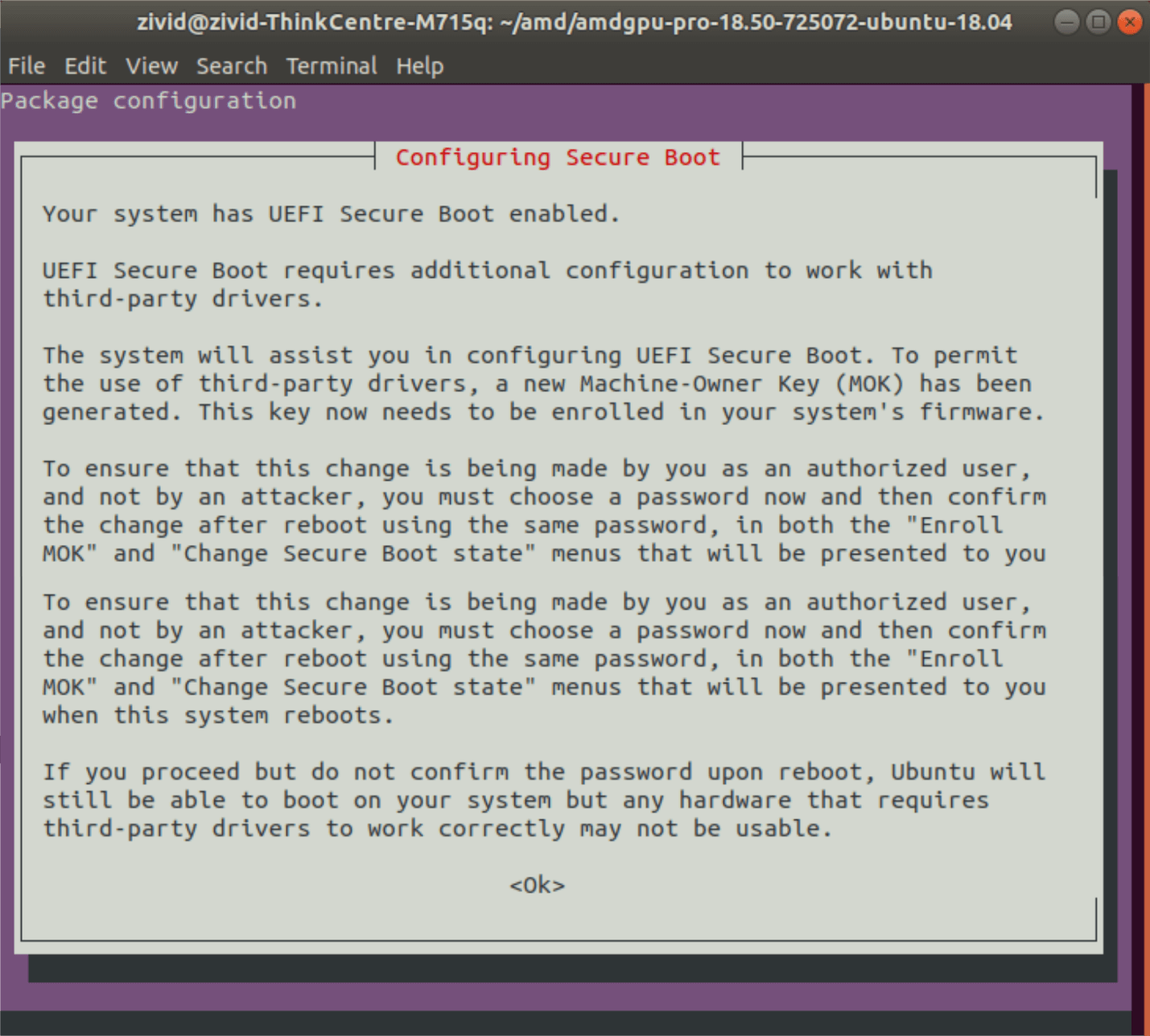
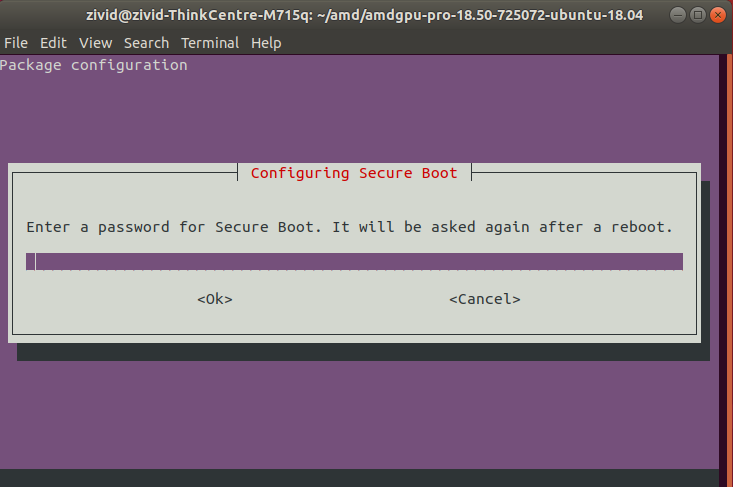
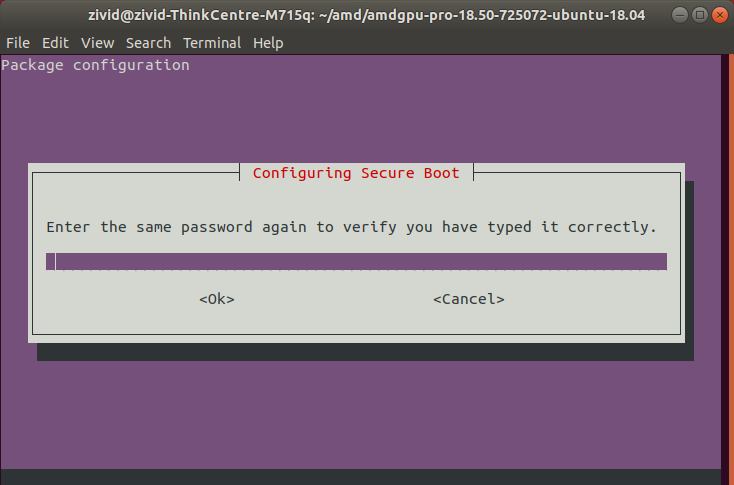
备注
如果您碰到 OpenCL 错误,您可能必须 将您的用户添加到视频组 。