Install OpenCL Drivers on Ubuntu
Ubuntu에 OpenCL 드라이버를 설치하려면 아래에서 GPU 제조사를 선택하고 사용 중인 Ubuntu 버전에 맞는 명령을 실행하세요.
Intel
키보드에서 Ctrl + Alt + T 키를 눌러 터미널 창을 열고 OpenCL 드라이버를 설치합니다.
Ubuntu 26.04
sudo apt update
sudo apt install intel-opencl-icd
Ubuntu 24.04
sudo apt update
sudo apt install intel-opencl-icd
Ubuntu 22.04
sudo apt update
sudo apt install intel-opencl-icd
Ubuntu 20.04
sudo apt update
sudo apt install intel-opencl-icd
Ubuntu 18.04
참고
SDK 2.10부터 Ubuntu 18.04에 대한 지원이 종료되었습니다. 이전 SDK 버전에 대한 Ubuntu 18.04 지침을 보려면 왼쪽 상단 모서리에서 기술 자료 버전을 변경하십시오.
Zivid Studio 를 열고 OpenCL 오류가 발생하지 않는지 확인하세요.
참고
OpenCL 오류가 발생하면 add your user to group Video 를 실행하십시오.
NVIDIA
시스템에 NVIDIA GPU 드라이버 PPA를 추가합니다:
키보드에서 Ctrl + Alt + T 키를 눌러 터미널 창을 엽니다.
graphics-driver PPA를 추가합니다.
sudo add-apt-repository ppa:graphics-drivers/ppa
PPA를 추가하면 현재 long-lived branch 릴리스 드라이버 패키지 이름이 출력됩니다. 예:
nvidia-xxx.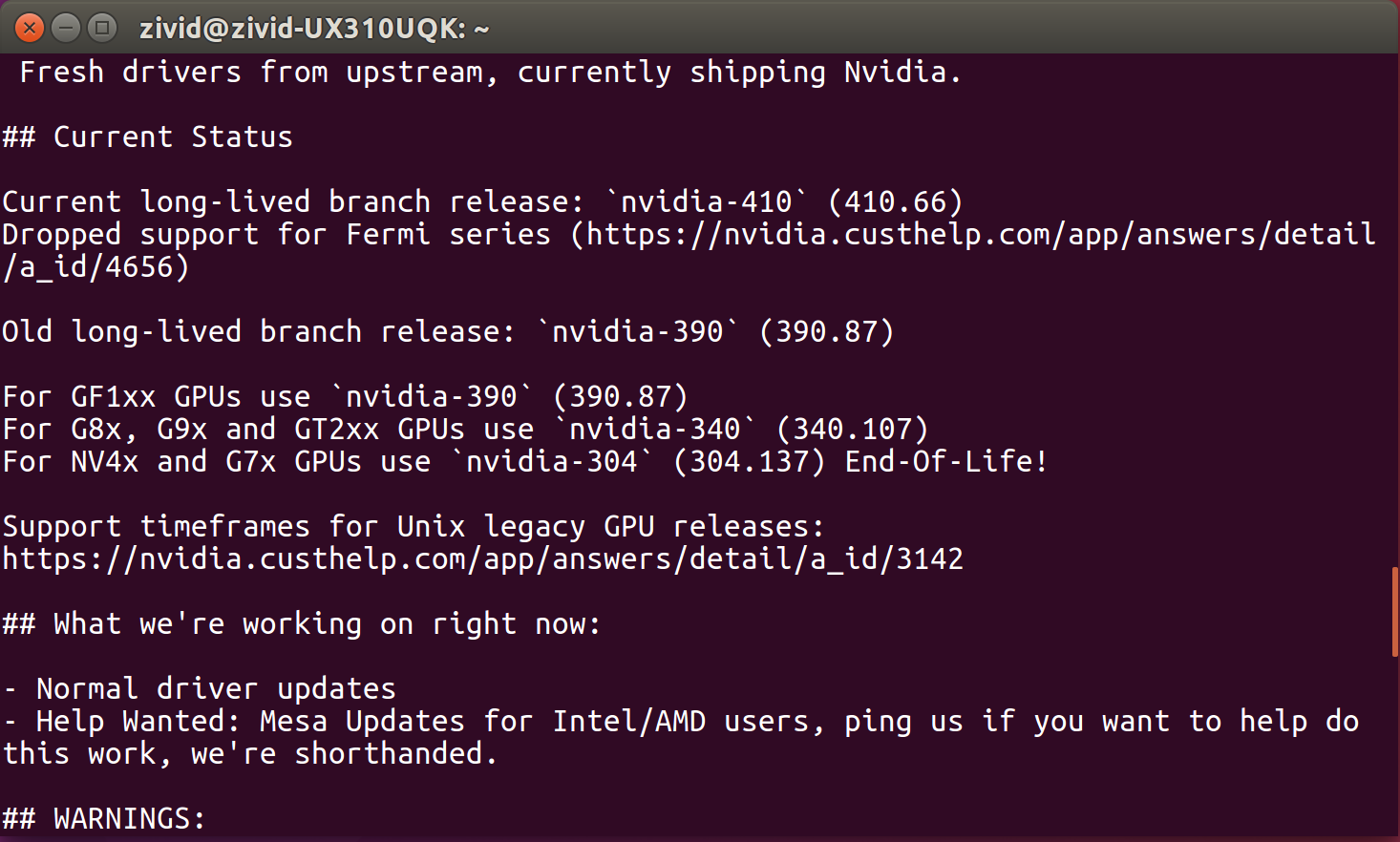
시스템에 최신 최신 드라이버를 설치합니다:
Ubuntu 26.04
sudo apt update
sudo apt install nvidia-driver-xxx
Ubuntu 24.04
sudo apt update
sudo apt install nvidia-driver-xxx
Ubuntu 22.04
sudo apt update
sudo apt install nvidia-driver-xxx
Ubuntu 20.04
sudo apt update
sudo apt install nvidia-driver-xxx
Ubuntu 18.04
참고
SDK 2.10부터 Ubuntu 18.04에 대한 지원이 종료되었습니다. 이전 SDK 버전에 대한 Ubuntu 18.04 지침을 보려면 왼쪽 상단 모서리에서 기술 자료 버전을 변경하십시오.
드라이버를 설치한 후 시스템을 다시 시작합니다.
sudo rebootZivid Studio 를 열고 OpenCL 오류가 발생하지 않는지 확인하세요.
참고
OpenCL 오류가 발생하면 add your user to group Video 를 실행하십시오.
AMD
경고
낮은 사용률과 드라이버의 OpenCL 안정성 문제로 인해 AMD 컴퓨팅 장치/GPU 사용 지원이 중단되었습니다. Config.yml 파일에서 옵션을 활성화하여 지원되지 않는 컴퓨팅 장치로 SDK를 실행하도록 선택 할 수는 있습니다. 하지만 이러한 설정은 예상치 못한 결과와 오류를 발생시킬 수 있으며, Zivid에서 테스트되지 않았습니다.
경고
Radeon은 일부 GPU에서 더 이상 SPIR을 지원하지 않습니다. GPU 드라이버가 Zivid 소프트웨어와 호환되도록 SPIR을 지원하는지 확인하십시오.
Linux용의 알맞은 Radeon 소프트웨어를 다운로드하고 압축을 풉니다.
키보드에서 Ctrl + Alt + T 키를 눌러 터미널 창을 엽니다.
임시 폴더를 만들고 해당 폴더로 이동합니다.
mkdir amd
cd amd
Ubuntu 22.04
이 드라이버에 대한 AMD 자체 릴리스 노트 페이지는 더 이상 제공되지 않습니다. 다음 안내에서는 저희가 테스트를 거쳐 정상적으로 작동하는 것으로 확인한 버전을 사용합니다. 이 글을 작성하는 시점 기준으로 해당 버전은 22.20.3입니다. AMD는
/latest경로를 제공하지만, 이 경로 역시 여전히 오류가 있는 22.20 버전을 가리킵니다.wget --referer http://support.amd.com http://repo.radeon.com/amdgpu-install/22.20.3/ubuntu/jammy/amdgpu-install_22.20.50203-1_all.deb
apt를 사용하여 이 패키지를 설치합니다:sudo apt install ./amdgpu-install_22.20.50203-1_all.deb sudo apt update
Ubuntu 20.04
Linux 커널 버전을 확인하십시오:
uname -r커널 5.4
Linux Kernel 버전 5.4(Ubuntu LTS)의 경우 Ubuntu 20.04용 Radeon Software 20.45를 다운로드하십시오.
wget --referer http://support.amd.com https://drivers.amd.com/drivers/linux/amdgpu-pro-20.45-1188099-ubuntu-20.04.tar.xz
내용을 추출합니다.
tar -Jxvf amdgpu-pro-20.45-1188099-ubuntu-20.04.tar.xz
cd amdgpu-pro-20.45-1188099-ubuntu-20.04
커널 5.8
Linux Kernel 버전 5.8(Ubuntu LTS HWE 스택)의 경우 Linux 20.04용 Radeon Software 20.50을 다운로드하십시오.
wget --referer http://support.amd.com https://drivers.amd.com/drivers/linux/amdgpu-pro-20.50-1234664-ubuntu-20.04.tar.xz
내용을 추출합니다.
tar -Jxvf amdgpu-pro-20.50-1234664-ubuntu-20.04.tar.xz
cd amdgpu-pro-20.50-1234664-ubuntu-20.04
Ubuntu 18.04
참고
SDK 2.10부터 Ubuntu 18.04에 대한 지원이 종료되었습니다. 이전 SDK 버전에 대한 Ubuntu 18.04 지침을 보려면 왼쪽 상단 모서리에서 기술 자료 버전을 변경하십시오.
graphics stack을 설치합니다.
Ubuntu 22.04
amdgpu-install --usecase=graphics,opencl --no-32 --no-dkms
참고
Secure Boot 이 필요한 경우 DKMS(위 command에서
--no-dkms을 제거)를 포함해야 할 수 있습니다. 자세한 내용은 secure-boot-support 을 참조하십시오.이제 사용자를
render그룹과video그룹의 구성원으로 추가합니다.sudo gpasswd -a $USER render sudo gpasswd -a $USER video
변경 사항을 적용하려면 재부팅해야 할 수 있습니다.
sudo reboot이제
ZividStudio를 열어 봅니다. 실패하면 다음 단계를 따르십시오.ZividStudio
Ubuntu 20.04
./amdgpu-pro-install --opencl=pal
Configure Secure Boot 단계를 따르십시오(메시지가 표시되는 경우).
Zivid Studio 를 열고 OpenCL 오류가 발생하지 않는지 확인하세요.
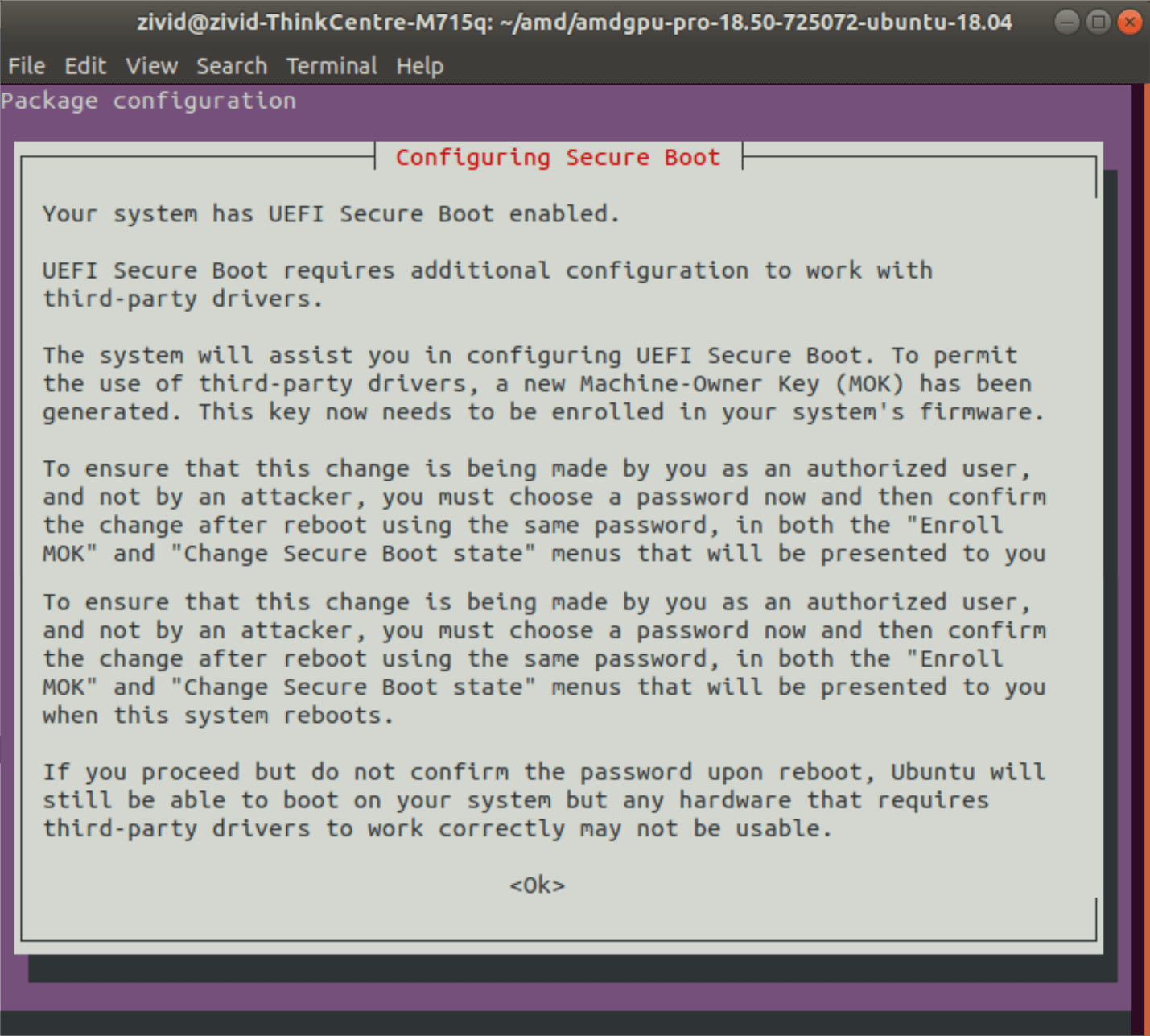
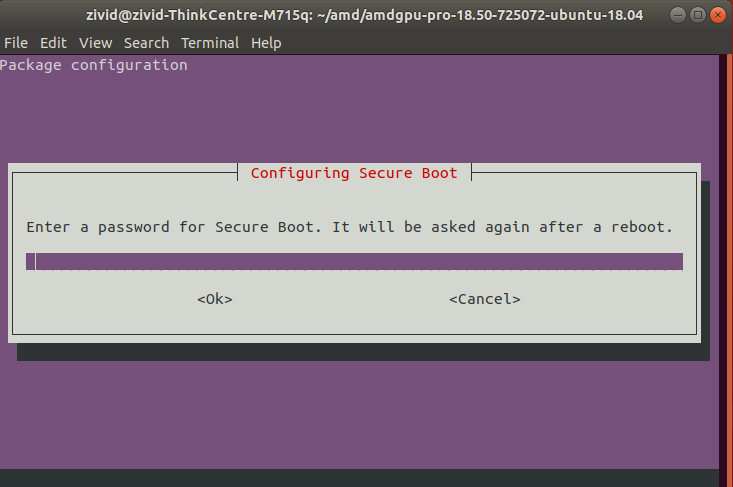
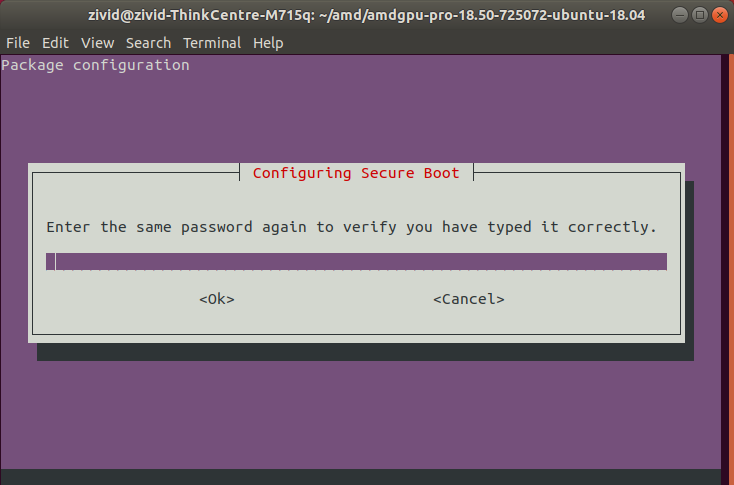
참고
OpenCL 오류가 발생하는 경우 add your user to group Video 를 실행해야 할 수도 있습니다.