Select Specific GPU for Zivid Software
This article demonstrates how to specify a computational device for Zivid Software. This is relevant if you have multiple GPUs and want to use a specific one. This can be one integrated GPU and one or more dedicated GPUs.
Note
Make sure that the GPU requirements for Zivid are met. If you are trying to run Zivid SDK using CPU or AMD GPU, check how to opt in to run the SDK with an unsupported compute device.
Specifying GPU is done by updating the Zivid Config file.
If the file already exists and it’s located in %LOCALAPPDATA%ZividAPI for Windows or "${XDG_CONFIG_HOME-$HOME/.config}"/Zivid/API for Ubuntu, skip ahead to editing the ComputeDevice parameters below.
If the file does not exist:
Download the
Config.ymlfile.The config file contains the following information:
__version__: 4
Configuration:
    ComputeDevice:
        SelectionFilter: ""
        Type: GPU
        Vendor: Nvidia
Place the config file in the following directory:
Windows
mkdir %LOCALAPPDATA%\Zivid\API
move %HOMEPATH%\Downloads\Config.yml %LOCALAPPDATA%\Zivid\API\
Ubuntu
mkdir --parents "${XDG_CONFIG_HOME-$HOME/.config}"/Zivid/API
mv ~/Downloads/Config.yml "${XDG_CONFIG_HOME-$HOME/.config}"/Zivid/API/
Caution
Any existing Config file will be overwritten.
Caution
Zivid configuration files must use .yml file extension ( not .yaml).
The desired GPU (if it is known) is assigned by changing the config file
ComputeDeviceparameters:If you have a single GPU per vendor (e.g. an integrated Intel GPU and a dedicated NVIDIA GPU), change
TypetoGPUandVendortoNVIDIAorIntel, e.g.ComputeDevice: SelectionFilter: "" Type: GPU Vendor: Nvidia
If you have multiple GPUs of the same vendor (e.g. two Nvidia GPUs),
SelectionFiltermust specify which GPU to use. Find the exact device name first: with the OpenCL version of the SDK, runclinfo -lto list all compute devices; with the CUDA version, runnvidia-smi -Linstead. LeaveTypeandVendorasAny, and setSelectionFilterto any unique part of the device name, e.g. for an NVIDIA GeForce RTX 3060:ComputeDevice: SelectionFilter: "RTX 3060" Type: Any Vendor: Any
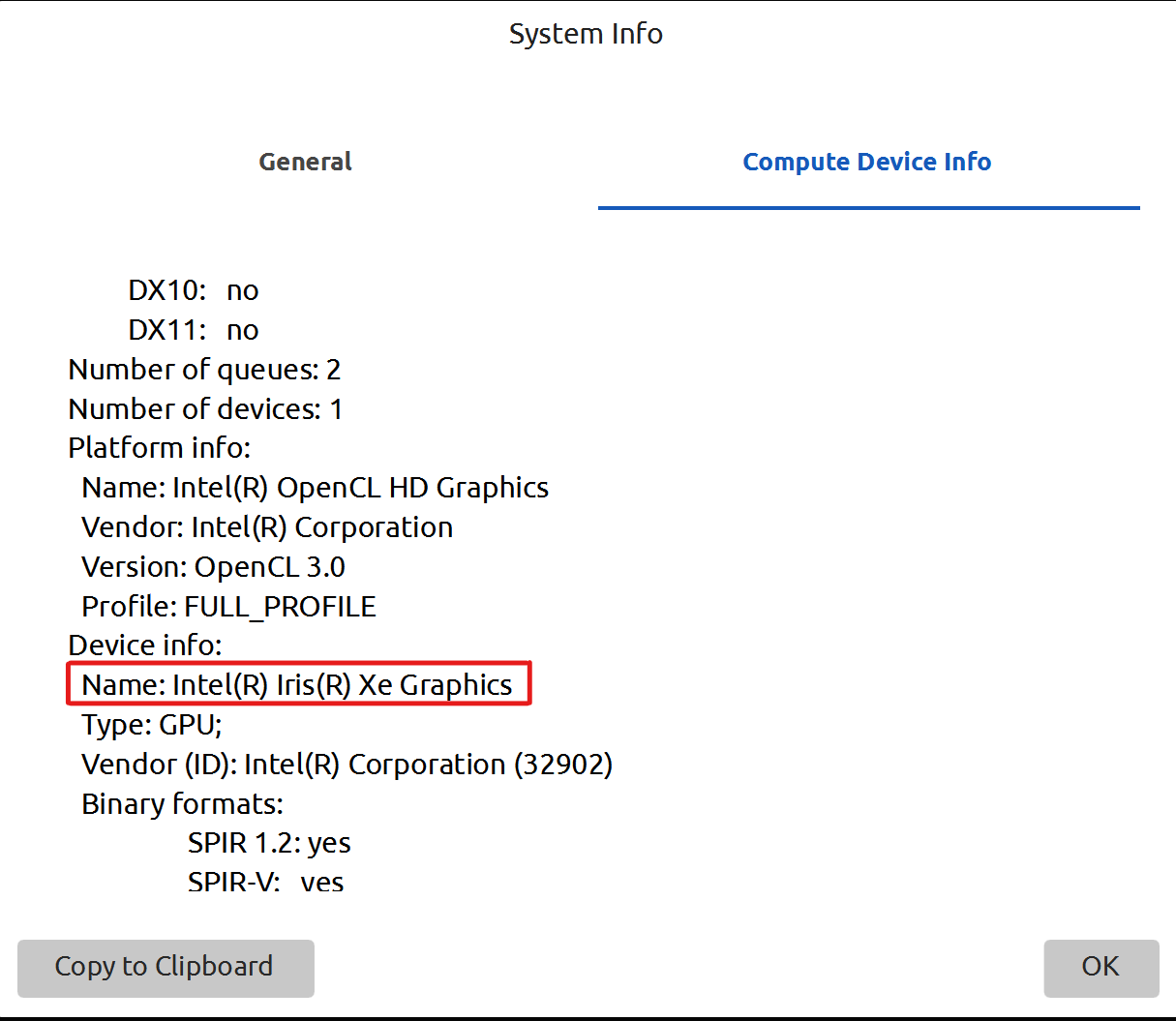
To verify the changes, re-launch Zivid Studio and go to Help → About Zivid Studio → System Info → Compute Device Info. The selected device can be seen under Device info.
Version History
SDK |
Changes |
|---|---|
2.11.0 |
AMD is no longer recommended. Official support has been removed in SDK, see Enable Unsupported Compute Device for Zivid Software. Removed instructions to run SDK on CPU only. |