Visualizer
Introduction
The Zivid Motion Visualizer is a 3D inspection tool for the motion planner and the robot cell it plans in. It renders the planner’s model of the cell, the API calls the application has made, and the result of each call.
This article covers how to open the Visualizer, what each part of the window shows, and how to inspect paths, inverse kinematics and failed paths. It also covers how to export an API log to share a scenario with Zivid. The screenshots show a piece picking cell.
Note
The Visualizer shows the planner’s state and the history of its API calls.
It does not set up the planner: you cannot use it to set obstacles or change what is mounted on the robot.
It is not a live camera feed, and the robot it shows is the planner’s model.
To make the model follow a real robot, the application calls Motion::Visualizer::setRobotConfiguration.
Prerequisites
Install Zivid Motion, see Installation.
Generate the planning data for your cell, see Generate Planning Data. Viewing a planner needs it, viewing a cell does not.
Alternatively, use the Zivid Motion Sandbox, which comes with installed cells, generated planning data, and samples that open the Visualizer. For more information about the Sandbox, contact customersuccess@zivid.com.
Opening the Visualizer
The Visualizer opens in one of two modes, depending on what you want to inspect.
View a planner to inspect the state of a running planner. Pass the planner to
Motion::Visualizer::viewPlanner. The window follows every API call the application makes to that planner, and lists the calls in the Api Log. The rest of this article describes this mode.View a cell to inspect a robot cell without a planner, for example after you change its configuration or URDF files. Pass the cell name to
Motion::Visualizer::viewCell. The window has the Inspection, Setup and View menus, but no Api Log, since there are no API calls to show.
The window stays open until the user closes it or the Visualizer object is destroyed.
Call Motion::Visualizer::wait at the end of the application to keep it open.
Only one Visualizer can exist at a time.
auto planner = app.createPlanner(
    Zivid::Motion::PlannerSettings{ "my_cell", Zivid::Motion::Profile::production });
auto visualizer = Zivid::Motion::Visualizer::viewPlanner(planner);
visualizer.wait();
planner = app.create_planner(PlannerSettings(cell_name="my_cell", profile=Profile.production))
visualizer = Visualizer.view_planner(planner)
visualizer.wait()
The Basic Path Calls samples open the Visualizer for their planner when useVisualizer is set to true.
The Visualize Cell sample opens it for a cell.
The Window at a Glance
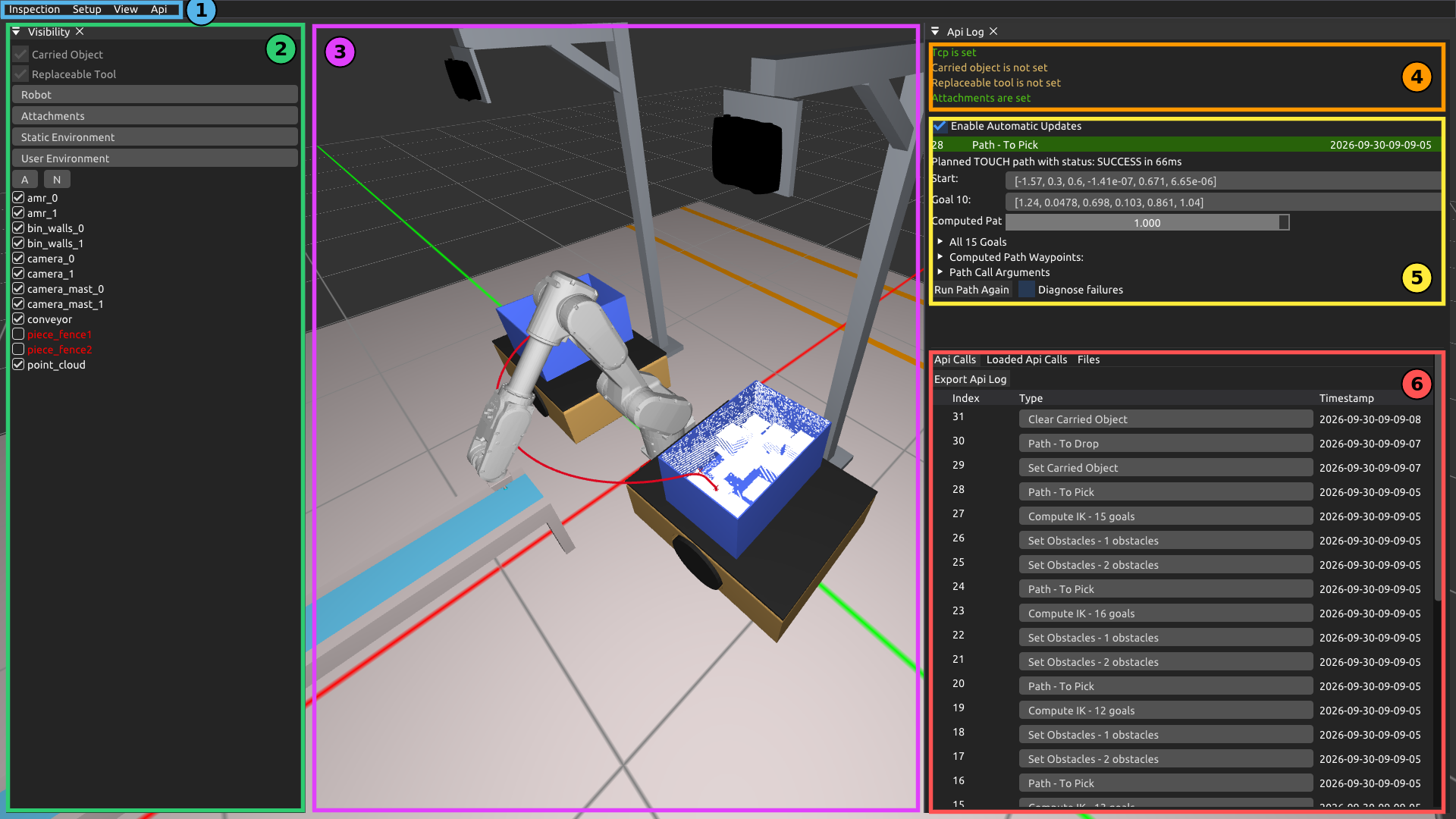
The window has a menu bar and a 3D view. The menu bar opens panels, such as Visibility and Api Log, shown open in the screenshot.
The menu bar opens panels and sets display options.
The Visibility panel, opened from the Inspection menu, shows or hides each part of the scene.
The 3D view shows the robot, the cell, the obstacles and the selected planner result.
The Api Log panel, opened from the Api menu, has three parts:
The planner’s current setup.
The details of the API call selected in the list below.
The list of API calls made since the planner was created.
Tip
The Visualizer remembers the window layout, the open panels and the hidden objects between runs.
Menus
The menu bar has four menus.

Inspection
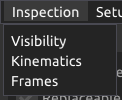
Visibility opens or closes the Visibility panel, described in Choosing What to Show.
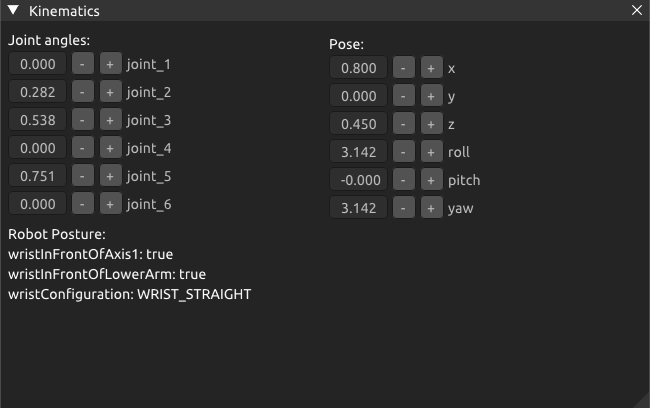
Kinematics shows the robot’s joint angles and the pose of the tool center point. Joint angles and orientations are in radians, and positions are in meters. Change a joint angle, or use - and +, to move the robot model. The panel also shows the Robot Posture, for example whether the wrist is in front of axis 1.
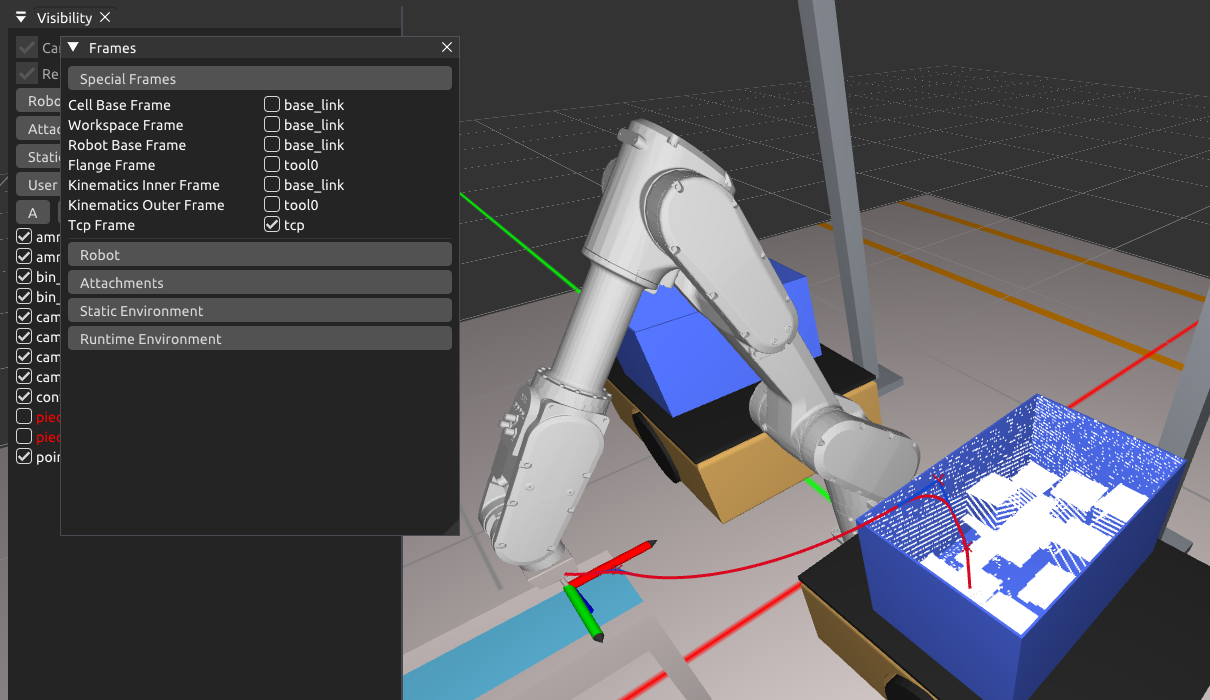
Frames draws the coordinate frames defined in the URDF files that the planner loads. Use it to check the frames when you change a URDF file, as described in how to modify the robot cell. Under Special Frames, select for example Tcp Frame to see where the tool center point is and how it is oriented. The other sections list the frames of the robot links, attachments and obstacles.
Setup

Workspace → Show workspace draws the planner’s workspace as a yellow box.
The planner plans the robot’s motion inside this volume.
The workspace is defined in the cell’s UserConfiguration.yml, see Cell data.
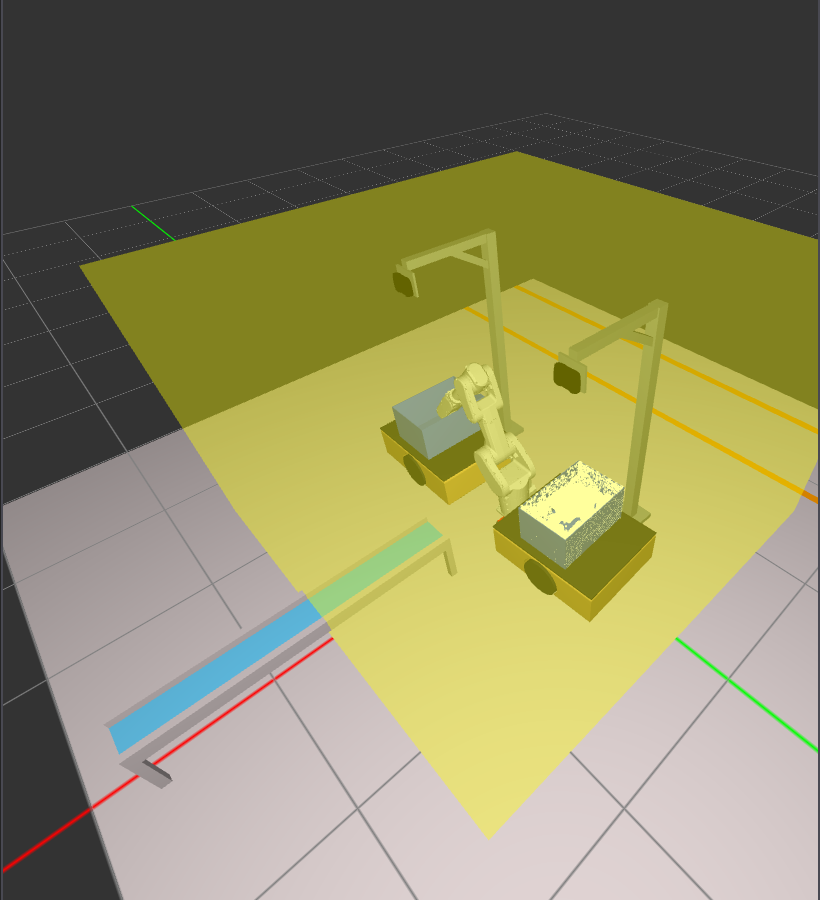
The box is large, so zoom out to see all of it.
The number fields in the Workspace menu only change the drawn box, not the planner’s configuration.
Use them to try out values, then enter the values you decide on in the UserConfiguration.yml.
View
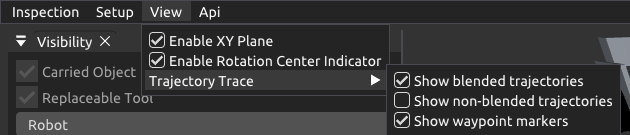
Enable XY Plane shows or hides the ground grid.
Enable Rotation Center Indicator shows a dot at the center point while you rotate or zoom the view.
Trajectory Trace sets how a selected path is drawn:
Show blended trajectories draws the path with an approximation of the blending, in red.
Show non-blended trajectories draws the path without blending, in blue.
Show waypoint markers draws a marker at each waypoint.
Api
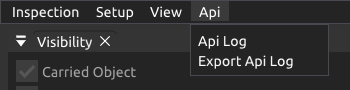
Api Log opens or closes the Api Log panel, described in Following the Planner in the Api Log. Export Api Log saves the API log, as described in Sharing a Scenario with Zivid.
Choosing What to Show
The Visibility panel lists every part of the scene, grouped by where it comes from. Open it from Inspection → Visibility. Clear a checkbox to hide that part. Hidden parts are listed in red.
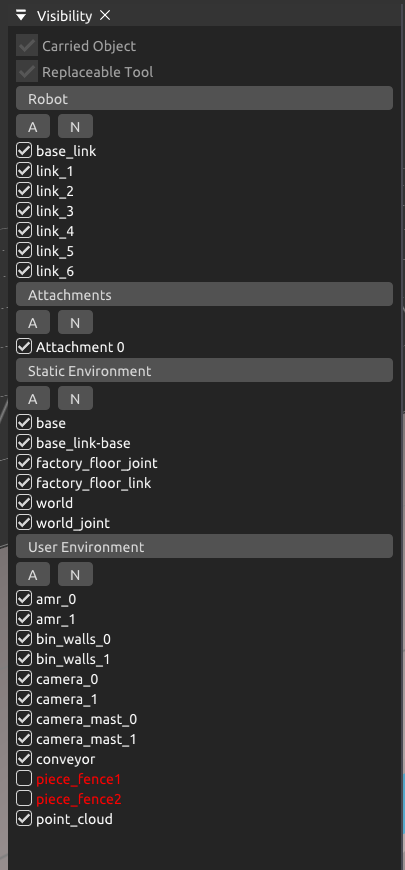
Carried Object and Replaceable Tool are greyed out until the application sets them.
Robot lists the robot links.
Attachments lists the attachments configured in the cell’s
UserConfiguration.yml.Static Environment lists the pre-defined cell geometry from the cell configuration.
User Environment lists the obstacles the application sets at runtime, such as meshes and point clouds.
Click a section name to expand or collapse it. A shows all parts in the section, and N hides all of them.
Tip
Hide an obstacle that blocks your view of the robot, such as a fence. Hiding an obstacle only affects the Visualizer. The planner still avoids it.
Following the Planner in the Api Log
The Api Log panel records every call the application has made to the planner since the planner was created. Open it from Api → Api Log. It is the key to understanding what the planner was asked to do, and what it answered.
Planner Setup
The lines at the top show the setup the planner uses right now. Green means that the item is set, and yellow means that it is not set.
Tcp is set: the application has told the planner where the tool center point is.
Carried object is not set: the robot is not holding an object.
Replaceable tool is not set: no exchangeable tool is mounted.
Attachments are set: attachments such as a gripper are active. Hover over the line to see the names of the active attachments.
The List of API Calls
The Api Calls tab lists the calls with the newest first. Each row has an index, a call type and a timestamp.
A pick-and-place cycle typically makes these calls:
Set Obstacles updates the obstacles, for example with a new point cloud.
Compute IK finds robot configurations that reach the pick poses.
Path plans a path, for example to one of those configurations.
Set Carried Object tells the planner that the robot now holds the picked object.
Clear Carried Object tells the planner that the object is released.
The text after Path - is the description the application gives each path request, such as To Pick or To Drop. The first calls in the list, such as Set TCP and Set Attachments, set up the planner.
Click a row to select that call. Its details appear above the list, and the 3D view draws its result. Selecting a call does not move the robot or change the obstacles in the scene.
Tip
Enable Automatic Updates selects the newest call every time the application makes one. Clear it to keep your own selection while the application continues to run.
Inspecting a Path
Select a Path call, for example Path - To Pick.
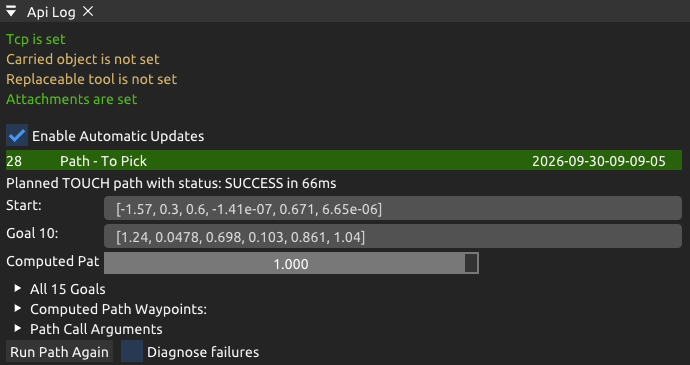
The header is green when planning succeeded, and red when it failed.
The first line gives the path type, the result and the planning time, for example
TOUCH,SUCCESSand66ms.Start is the joint configuration the path starts from.
Goal is the goal the planner selected.
Click the Start or Goal values to move the robot to that configuration in the 3D view.
The 3D view draws the path of the tool center point as a red line. Markers along the line show the waypoints.
Use the Computed Path slider to move the robot along the path.
0.0 is the start of the path and 1.0 is the end.
Click anywhere on the slider to jump to that point, or drag it to follow the motion.
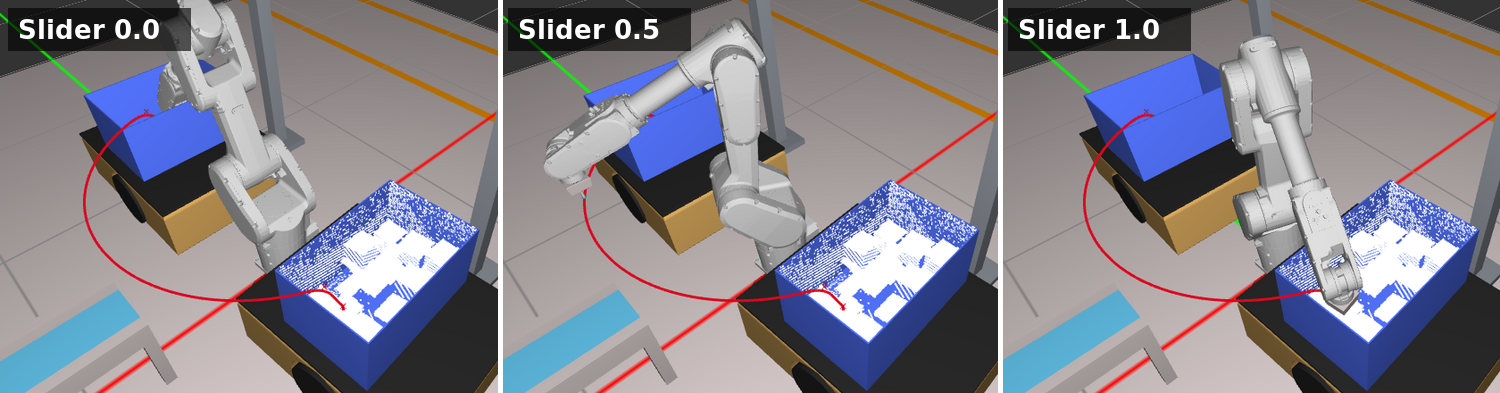
The slider is the only way to play back a path. Use it to check how the robot moves past the obstacles and the point cloud.
Expand the list of goals, here All 15 Goals, to see every goal the planner considered and which one it chose. A request can contain many goals, and the planner selects the best one it can reach.
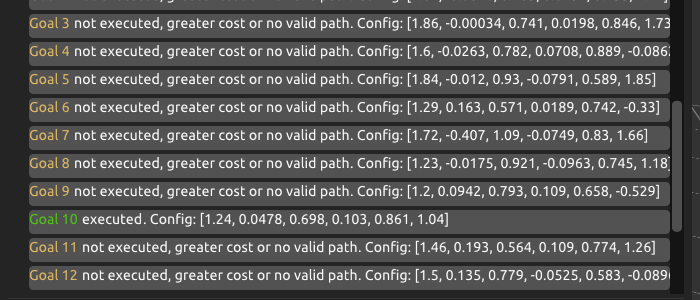
executed (green) is the goal the path goes to.
not executed, greater cost or no valid path (yellow) is a goal that was more costly to reach, or not reachable.
Click a goal to move the robot to it. Computed Path Waypoints lists each waypoint of the path with its blend radius. Path Call Arguments shows the request the application sent.
Understanding a Failed Path
A failed path has a red header and No Valid Trajectory next to the slider.
The status tells you why planning failed.
For example, BLOCKED_START means that the robot’s start configuration collides with something.
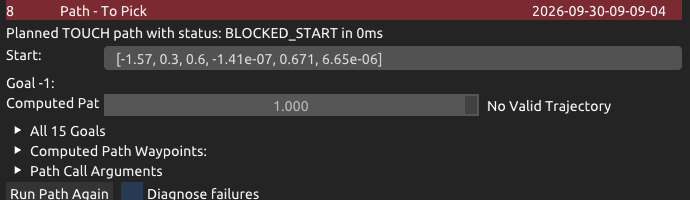
To investigate a failure, select Diagnose failures and click Run Path Again. The planner plans the same request once more, and adds the result to the list as a new call. When the new call fails, a Diagnostics section gives more information on why the path failed. Click a collision to move the robot to that configuration. The colliding robot part and the obstacle are highlighted in orange.
Note
Run Path Again plans against the obstacles that are in the scene now, not the ones from the original call. If the obstacles have changed since, the new result can differ from the original.
Inspecting Inverse Kinematics
Select a Compute IK call to see the goal poses. The 3D view draws a coordinate frame at each goal pose, with the X axis in red, Y in green and Z in blue.
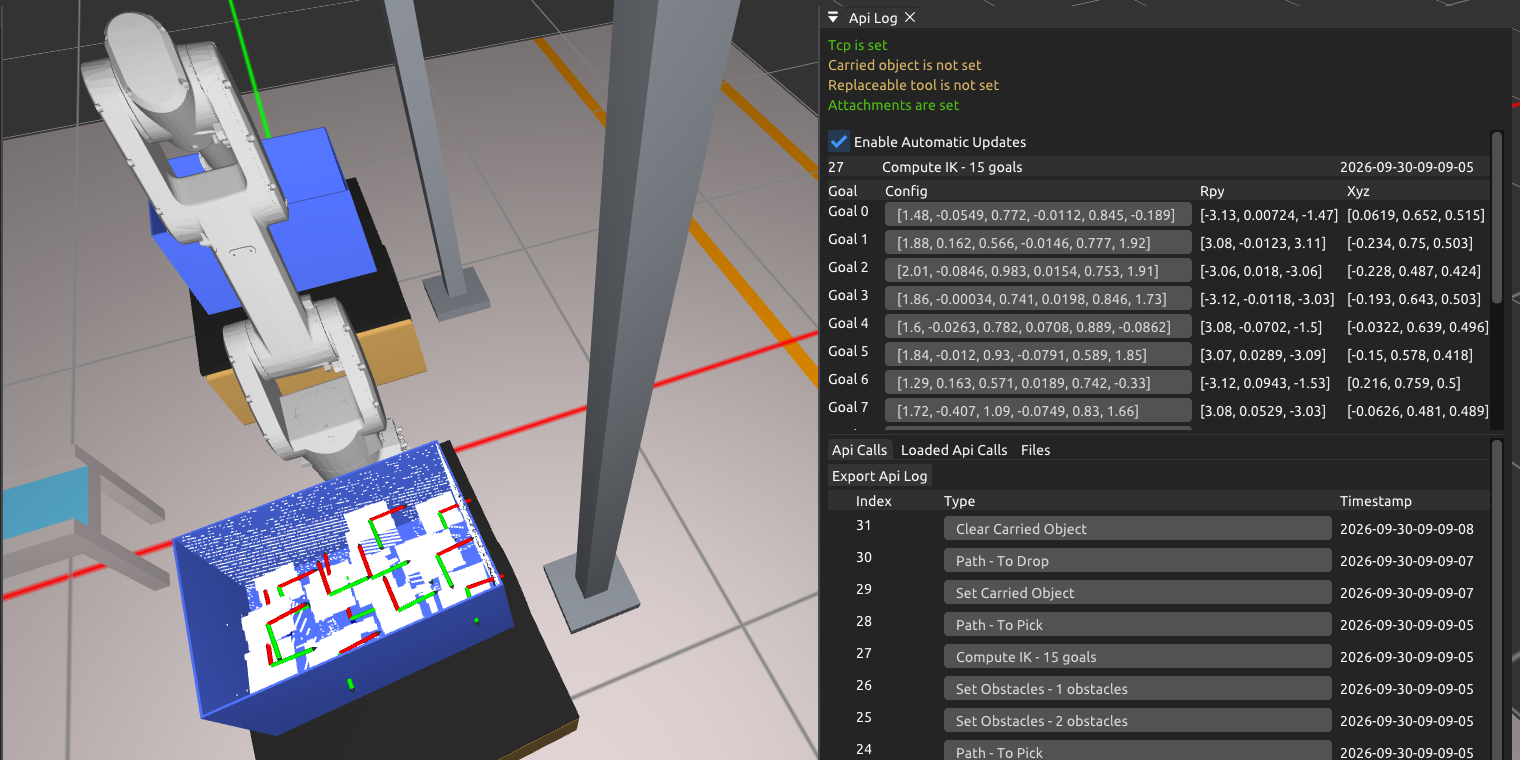
The table gives each goal’s joint configuration, orientation (Rpy) and position (Xyz). Click a configuration to move the robot to it. No IK solution found means that the robot cannot reach that pose.
Other API Calls
Set Obstacles lists the names of the meshes and point clouds in the call. The 3D view always shows the current obstacles, not the ones from the selected call.
Set Carried Object shows the carried object at the tool center point.
Set TCP draws a coordinate frame at the tool center point.
Sharing a Scenario with Zivid
Click Export Api Log to save everything the planner has done so far to a file. The path of the file appears next to the button. The same command is in Api → Export Api Log.

The file is saved in ~/.cache/Zivid/Motion/State unless the runtime configuration sets another folder.
Send the file to Zivid when you want help with a planning result.
To include the files needed to replay the scenario, package the log as shown in Samples, under Export and Package API Log.
The Files tab lists the exported logs. Click a file to replay all its calls, or right-click it and select Load without replaying the api calls to restore only the planner’s initial state. The loaded calls appear in the Loaded Api Calls tab.
Warning
Loading a log replaces the state of the planner that the application uses. Stop the application, or let it finish, before you load a log.