Unknown IP Configuration
Problem
You have followed Network Configuration and can still not discover the camera. This can happen if you don’t know the IP address or hostname of the camera, and the camera has previously been configured to a non-default IP address and hostname. The camera can also be configured for DHCP, while the interfacing network card on the PC is configured for static IP.
Note
If the Ethernet Link LED at the back of the camera is off, see No cameras found in Zivid Studio instead.
Solution
Tip
If you can, power cycle the camera and read the IP address from the splash screen projection.
Upgrade to SDK 2.11 and run the CLI tool ZividListCameras.
From SDK 2.11, the Zivid SDK detects all Zivid cameras on the network and reports their status. If you are unable to upgrade to SDK 2.11, do a network reset:
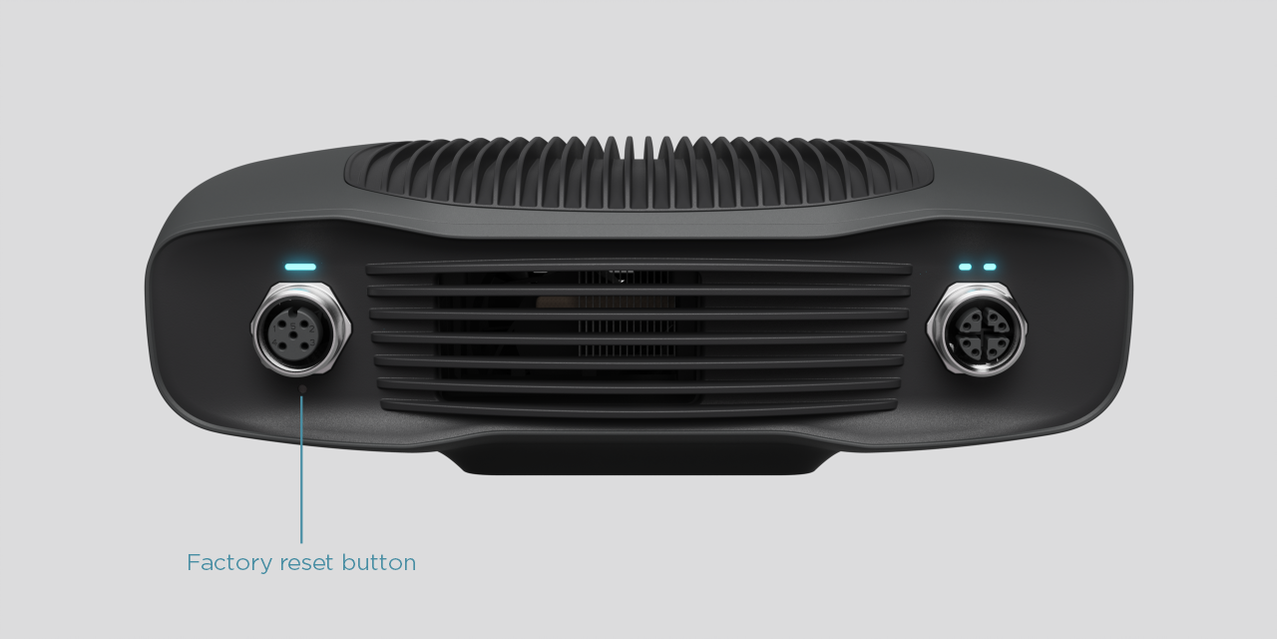
Locate the reset button below the power connector.
Use the pointed end of a paper clip to press and hold the button for 5 to 10 seconds until the Power LED turns green.
The camera will go back to its factory default IP
172.28.60.5.
Warning
Holding the reset button too long (more than 10 seconds) will reset the camera firmware to the factory default. If the firmware is reset, a Firmware Update can be required.
Warning
This solution refers to the factory reset button which has a known issue listed in the Zivid Errata. Please refer to Reset Button Fails to Reset Network Configuration if you encounter issues with the factory reset button.
You can now connect to the camera after following Static IP Network Configuration.