View
2D Color Image Histogram
To show the 2D image histogram:
Click on View → 2D Color Image Histogram.
Swap between Linear and Logarithmic to change scales.

Information
To open the information panel:
Click View → Information or Information in the bottom right corner.
It is available only after you load a point cloud from a ZDF file or capture a point cloud or a color image.
The top part of the Information panel shows Acquisition Time, Capture Time, and Point Cloud / Color Image Size.
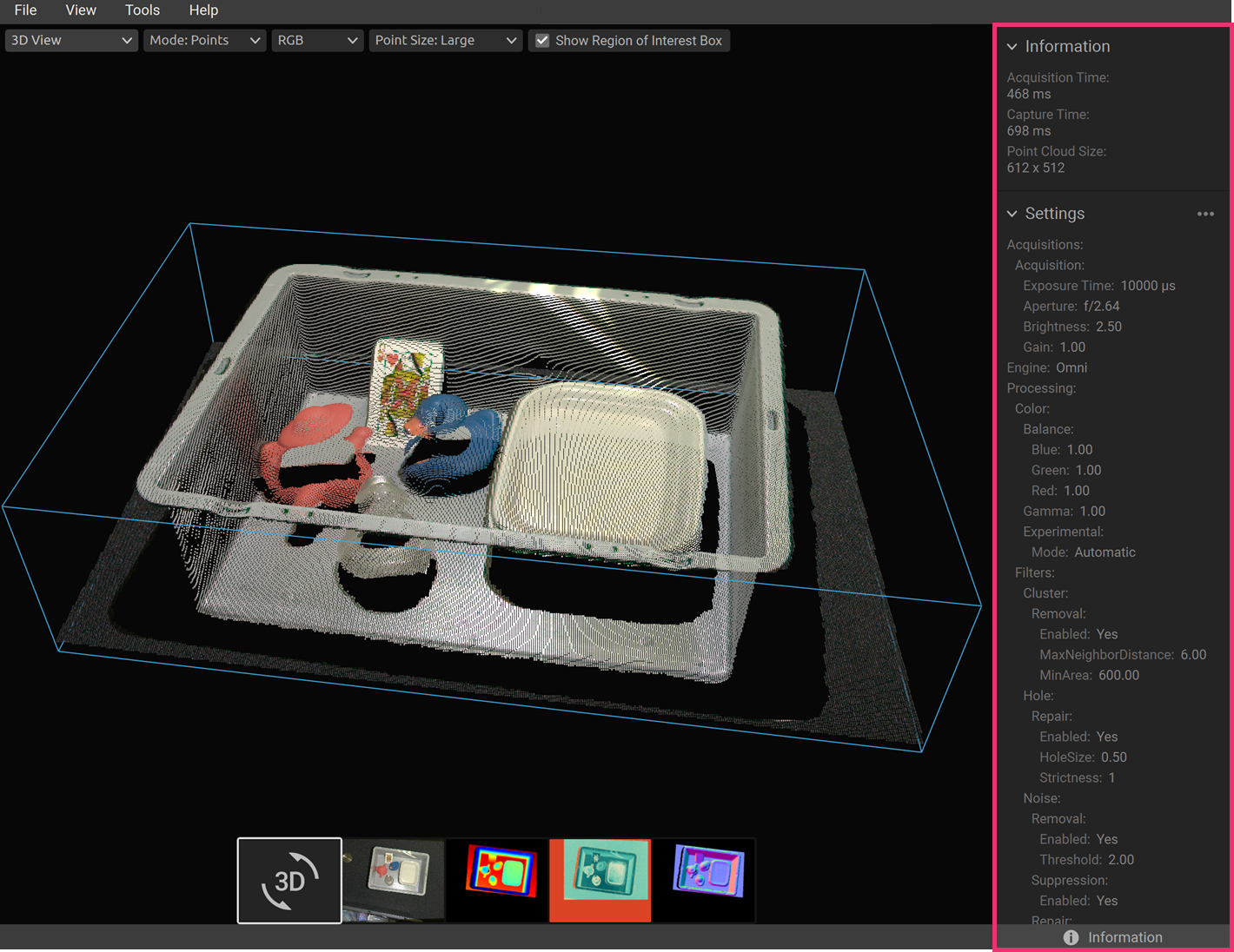
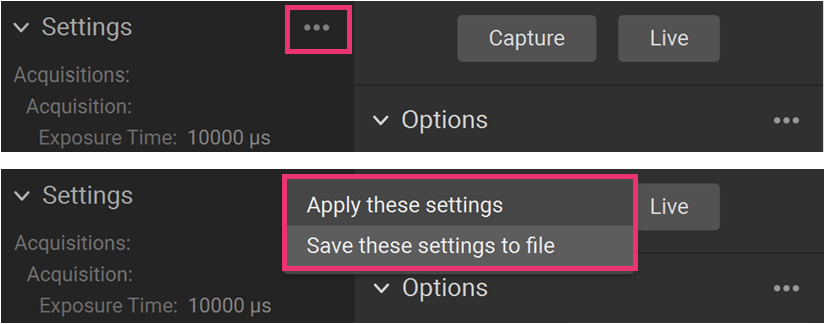
The bottom part shows the settings that were used in the capture. It is possible to save these settings to a file or apply them for use in the next capture.
3D Axis Indicator
A 3D axis indicator is displayed in the bottom left corner of the point cloud view. To disable/enable it, click on View → 3D Axis Indicator.
Show 4x4 Aruco Markers
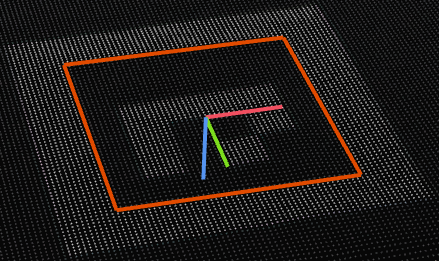
To highlight any 4x4 Aruco markers in the point cloud, click on View → Show 4x4 Aruco Markers.
Show barcodes
To show barcodes detected and decoded in the 2D image, click on View → Show barcodes.

Configure barcodes to read
To configure which barcodes to detect and decode in the 2D image, click on View → Configure barcodes to read.

Reset 3D View When Opening Files
To control whether the 3D view is reset to the default view each time you open a file, click View → Reset 3D View When Opening Files. Leave it disabled to keep the current viewpoint, for example to compare several files from the same angle. The same setting is also in File → Preferences.
Reset View
To reset the point cloud, color image, and depth image view back to the default view, click View → Reset View, or press Backspace.
Reset UI Layout
To restore the Zivid Studio window to its default layout, click View → Reset UI Layout.
Full Screen Mode
To toggle between full screen and regular screen mode, click View → Enter Full Screen Mode / Exit Full Screen Mode, or press F11.
Continue reading about Zivid Studio in Cameras.