Install OpenCL Drivers on Ubuntu
To install the OpenCL driver on Ubuntu, select your GPU vendor below and run the listed commands for your Ubuntu version.
Intel
Open a terminal window by pressing Ctrl + Alt + T keys on the keyboard, and install the OpenCL driver.
Ubuntu 26.04
sudo apt update
sudo apt install intel-opencl-icd
Ubuntu 24.04
sudo apt update
sudo apt install intel-opencl-icd
Ubuntu 22.04
sudo apt update
sudo apt install intel-opencl-icd
Ubuntu 20.04
sudo apt update
sudo apt install intel-opencl-icd
Ubuntu 18.04
Note
Support for Ubuntu 18.04 is removed since SDK 2.10. To see Ubuntu 18.04 instructions for an earlier SDK version, change the Knowledge Base version in the top left corner.
Open Zivid Studio and verify that you do not get OpenCL errors.
Note
If you get OpenCL errors, add your user to group Video.
NVIDIA
Add the NVIDIA GPU driver PPA to your system:
Open a terminal window by pressing Ctrl + Alt + T keys on the keyboard.
Add the graphics-driver PPA:
sudo add-apt-repository ppa:graphics-drivers/ppa
Adding the PPA prints the current long-lived branch release driver package name, e.g.
nvidia-xxx.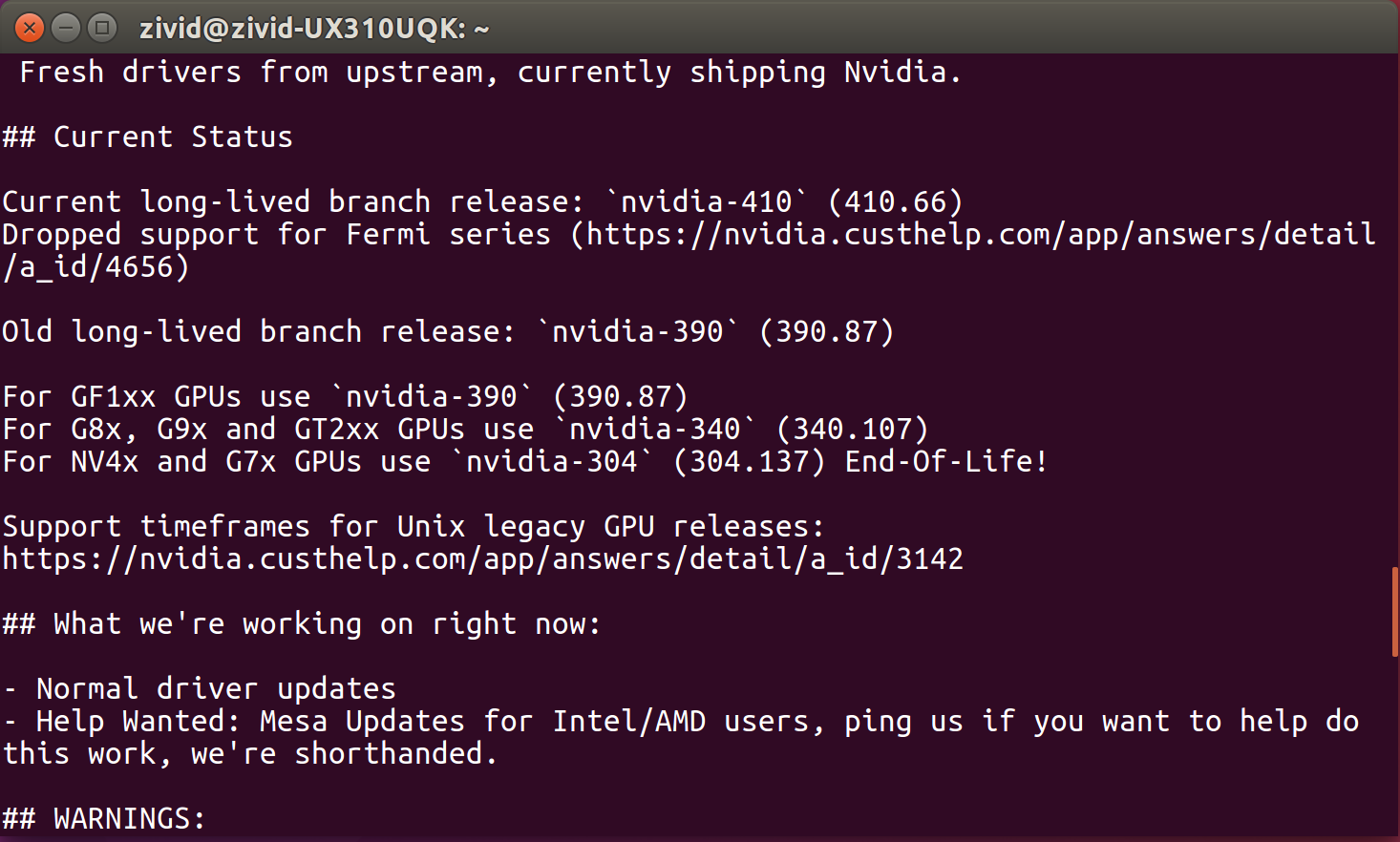
Install the current latest drivers for your system:
Ubuntu 26.04
sudo apt update
sudo apt install nvidia-driver-xxx
Ubuntu 24.04
sudo apt update
sudo apt install nvidia-driver-xxx
Ubuntu 22.04
sudo apt update
sudo apt install nvidia-driver-xxx
Ubuntu 20.04
sudo apt update
sudo apt install nvidia-driver-xxx
Ubuntu 18.04
Note
Support for Ubuntu 18.04 is removed since SDK 2.10. To see Ubuntu 18.04 instructions for an earlier SDK version, change the Knowledge Base version in the top left corner.
After installing the driver, restart your system:
sudo rebootOpen Zivid Studio and verify that you do not get OpenCL errors.
Note
If you get OpenCL errors, add your user to group Video.
AMD
Warning
Support for using AMD compute devices/GPUs is removed due to low usage and OpenCL stability issues in the drivers. It is possible to opt in to run the SDK with an unsupported compute device, by enabling an option in the Config.yml file. However, such a setup can give unexpected results and errors, and is not tested by Zivid.
Warning
Radeon no longer supports SPIR on some GPUs, please verify that your GPU drivers support SPIR to be compatible with Zivid Software.
Download and extract the correct Radeon Software for Linux:
Open a terminal window by pressing Ctrl + Alt + T keys on the keyboard.
Create a temporary folder and navigate to it:
mkdir amd
cd amd
Ubuntu 22.04
AMD’s own release-notes page for this driver is no longer available. In the following instructions we will use a version that we have tested and that works. At the time of writing this is version 22.20.3. AMD has a
/latestpath, but this still points to 22.20, which is broken.wget --referer http://support.amd.com http://repo.radeon.com/amdgpu-install/22.20.3/ubuntu/jammy/amdgpu-install_22.20.50203-1_all.deb
Install this package with
apt:sudo apt install ./amdgpu-install_22.20.50203-1_all.deb sudo apt update
Ubuntu 20.04
Check your Linux Kernel version:
uname -rKernel 5.4
For Linux Kernel version 5.4 (Ubuntu LTS), download Radeon Software 20.45 for Ubuntu 20.04:
wget --referer http://support.amd.com https://drivers.amd.com/drivers/linux/amdgpu-pro-20.45-1188099-ubuntu-20.04.tar.xz
Extract the contents:
tar -Jxvf amdgpu-pro-20.45-1188099-ubuntu-20.04.tar.xz
cd amdgpu-pro-20.45-1188099-ubuntu-20.04
Kernel 5.8
For Linux Kernel version 5.8 (Ubuntu LTS HWE stacks), download Radeon Software 20.50 for Linux 20.04:
wget --referer http://support.amd.com https://drivers.amd.com/drivers/linux/amdgpu-pro-20.50-1234664-ubuntu-20.04.tar.xz
Extract the contents:
tar -Jxvf amdgpu-pro-20.50-1234664-ubuntu-20.04.tar.xz
cd amdgpu-pro-20.50-1234664-ubuntu-20.04
Ubuntu 18.04
Note
Support for Ubuntu 18.04 is removed since SDK 2.10. To see Ubuntu 18.04 instructions for an earlier SDK version, change the Knowledge Base version in the top left corner.
Install the graphics stack.
Ubuntu 22.04
amdgpu-install --usecase=graphics,opencl --no-32 --no-dkms
Note
If you require Secure Boot you may have to include DKMS (remove
--no-dkmsin the above command). For more information see secure-boot-support.Now add your user as member of both the
rendergroup and thevideogroup.sudo gpasswd -a $USER render sudo gpasswd -a $USER video
You may have to reboot for the changes to take effect.
sudo rebootYou can now try to open
ZividStudio. If it fails then follow the next steps.ZividStudio
Ubuntu 20.04
./amdgpu-pro-install --opencl=pal
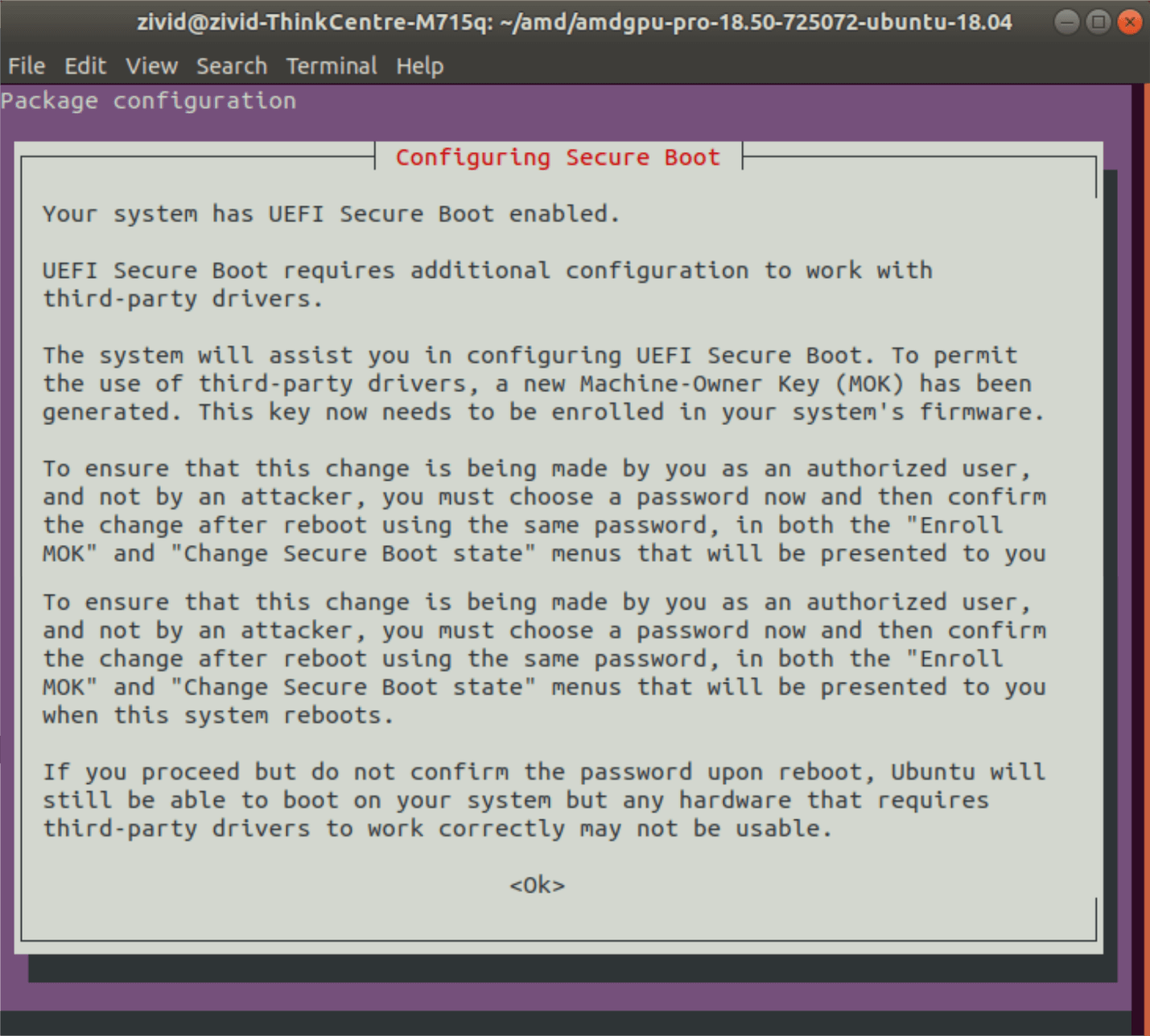
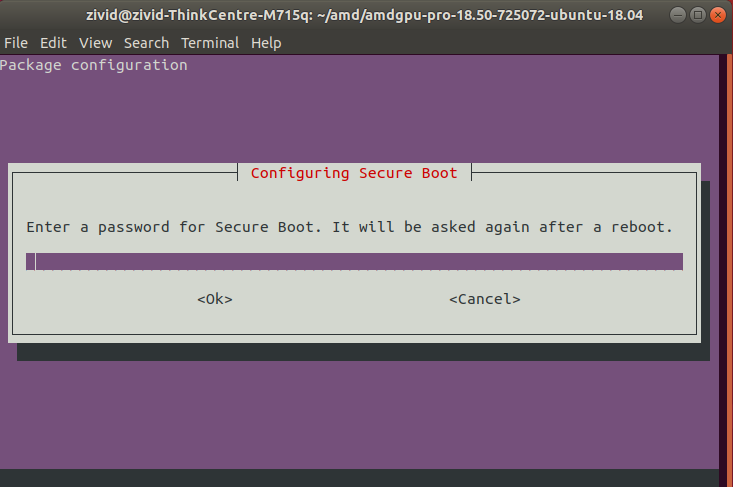
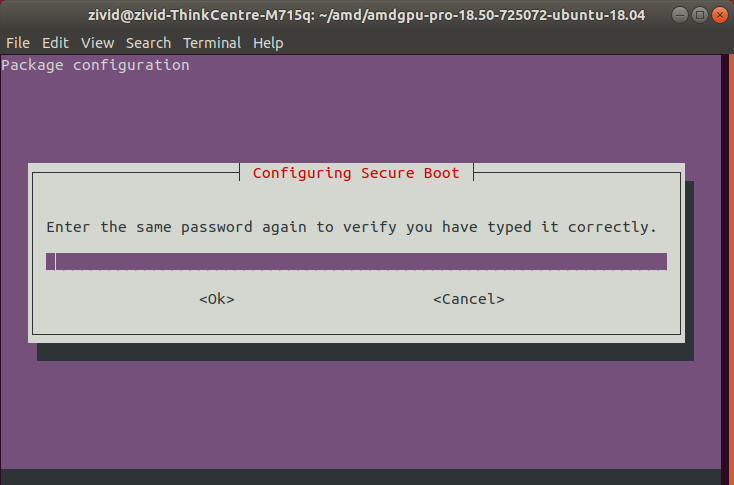
Follow the steps to Configure Secure Boot (if prompted):
Open Zivid Studio and verify that you do not get OpenCL errors.
Note
If you get OpenCL errors, you might have to add your user to group Video.